To get started quickly:
-
Enable E2D in Instance Settings
-
Set up your invoice email inbox
-
Share the inbox email with suppliers
-
Review invoices in the inbox
-
Check and edit data in the Draft Editor
-
Process invoices into Aqilla
-
Add automation rules to improve efficiency
Getting Started with Automated Purchase Invoice Processing (E2D)
Electronic to Digital invoice processing, known as E2D, allows you to automate the capture and processing of supplier invoices in Aqilla. Instead of manually entering invoice data, the system reads invoices sent by email, extracts key information, and prepares them for review and processing.
This feature requires Workflow Groups to be enabled and is chargeable. For more information, visit: https://www.aqilla.com/solutions/ai-invoice-capture-automation
What this guide will help you do
By the end of this guide, you will be able to:
-
Enable E2D in your system
-
Set up a dedicated invoice email inbox
-
Understand how invoices are received and displayed
-
Review and edit extracted invoice data
-
Process invoices into Aqilla
-
Configure settings to suit your business
Step 1: Enable E2D
Before using E2D, you need to enable it in your system.
-
Go to: Configuration -> Instance Settings
-
Set: E2D Enabled = Yes
Important:
-
Workflow Groups must be enabled for E2D to work
-
Enabling E2D will initiate billing
-
Contact Aqilla Support or your Account Manager before enabling to avoid unexpected charges
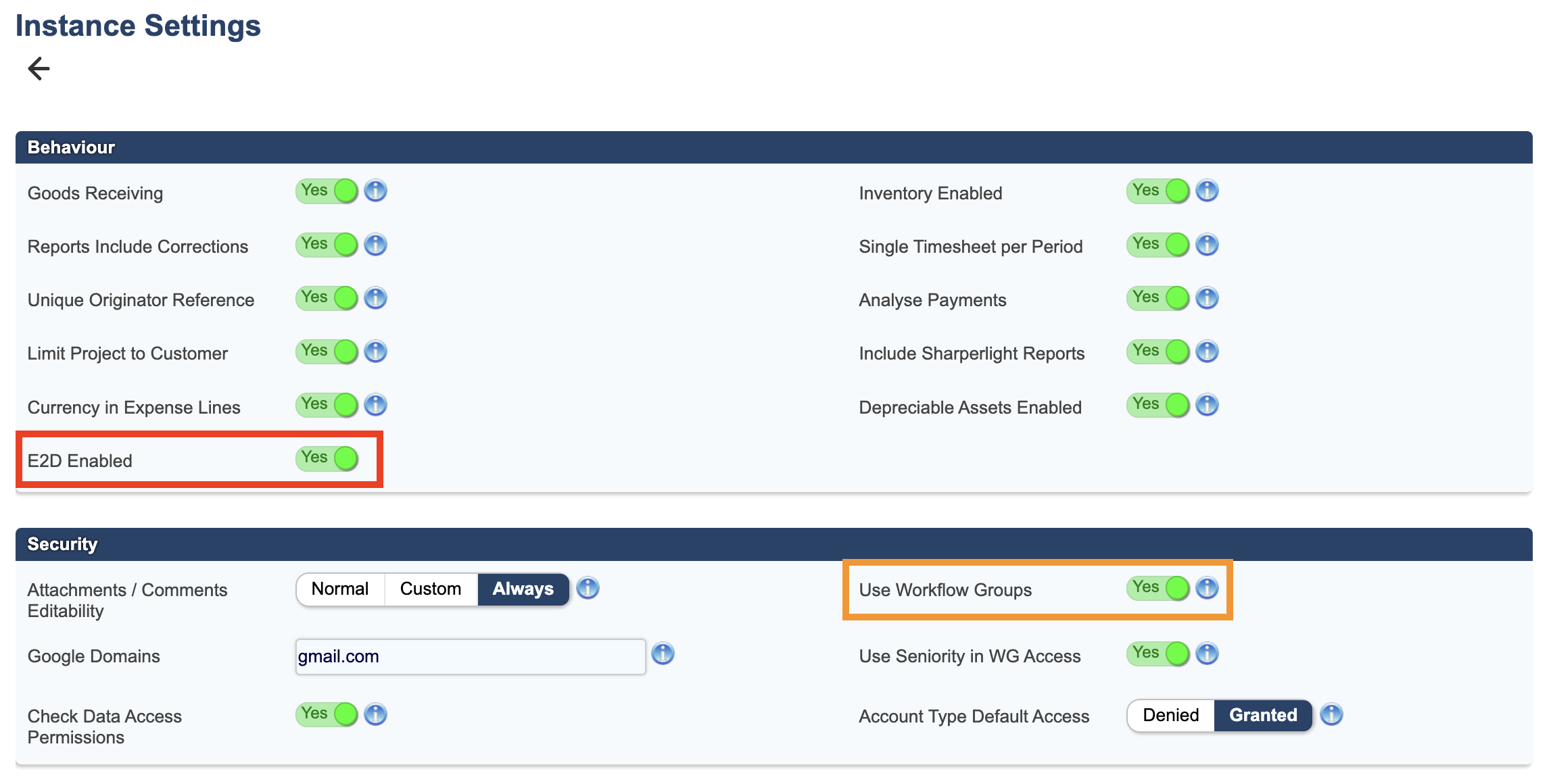
Reminder: To detect duplicates, ensure Unique Originator Reference is enabled.
Step 2: Set Up Your Invoice Inbox
E2D works by receiving invoices via email into a dedicated inbox.
-
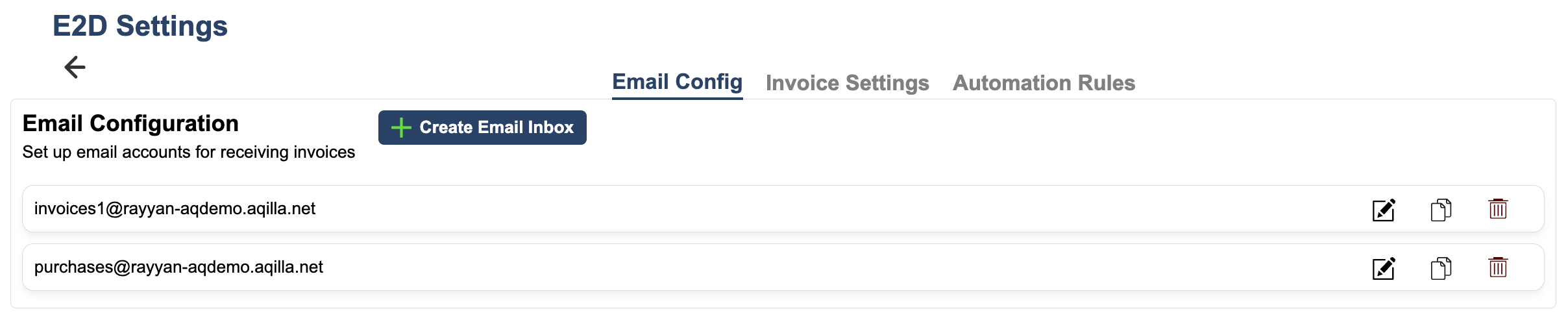
Go to: Configuration -> E2D Settings
-
Click: Create New Email Inbox
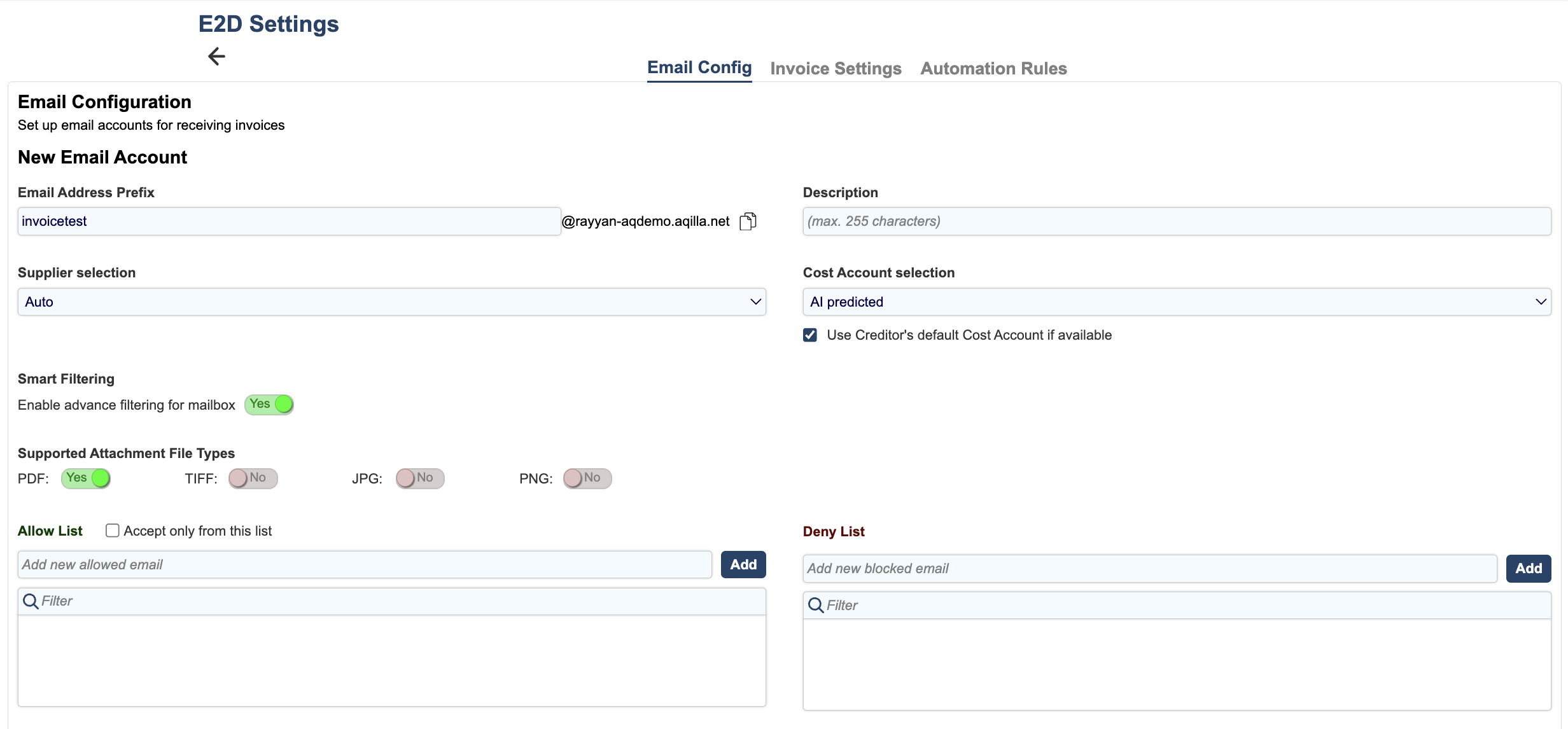
You will configure:
-
Email Address Prefix (for example: invoices, purchases)
-
Description (optional)
-
Supplier Selection (whether it is auto populated when the invoice is imported)
-
Cost Account Selection (predicted by AI by default)
-
Smart Filtering (AI filtering intelligence)
-
Supported File Types (PDF is enabled by default)
-
Allow list and deny list for email senders
Example email address:
invoices@yourinstance.aqilla.net
Share this email address with your suppliers so they can send invoices directly into your system.
Step 3: Understand the Purchase Invoice Inbox
Once set up, incoming invoices appear in the Draft Purchase Inbox within the Imported Invoices folder.
This inbox shows:
-
Received emails
-
Imported invoices (drafts)
-
Exceptions (invoices needing attention)
Here, you can:
-
Filter invoices
-
Edit column order, visibility, and width
-
View imported, deleted, or processed invoices
-
Open invoices for review
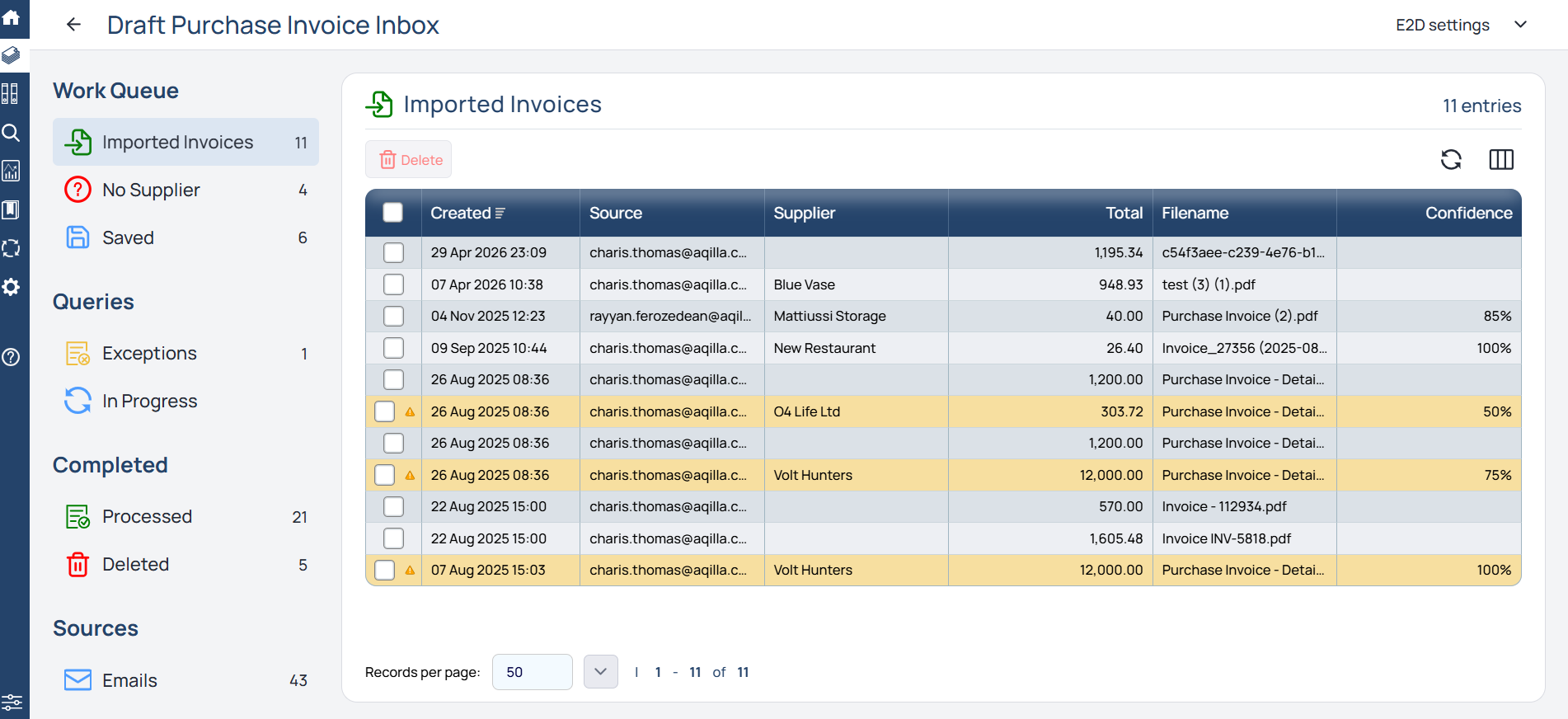
Example: If an invoice shows “Missing Supplier”, you will need to assign one before processing.
Step 4: Review invoices in the draft editor
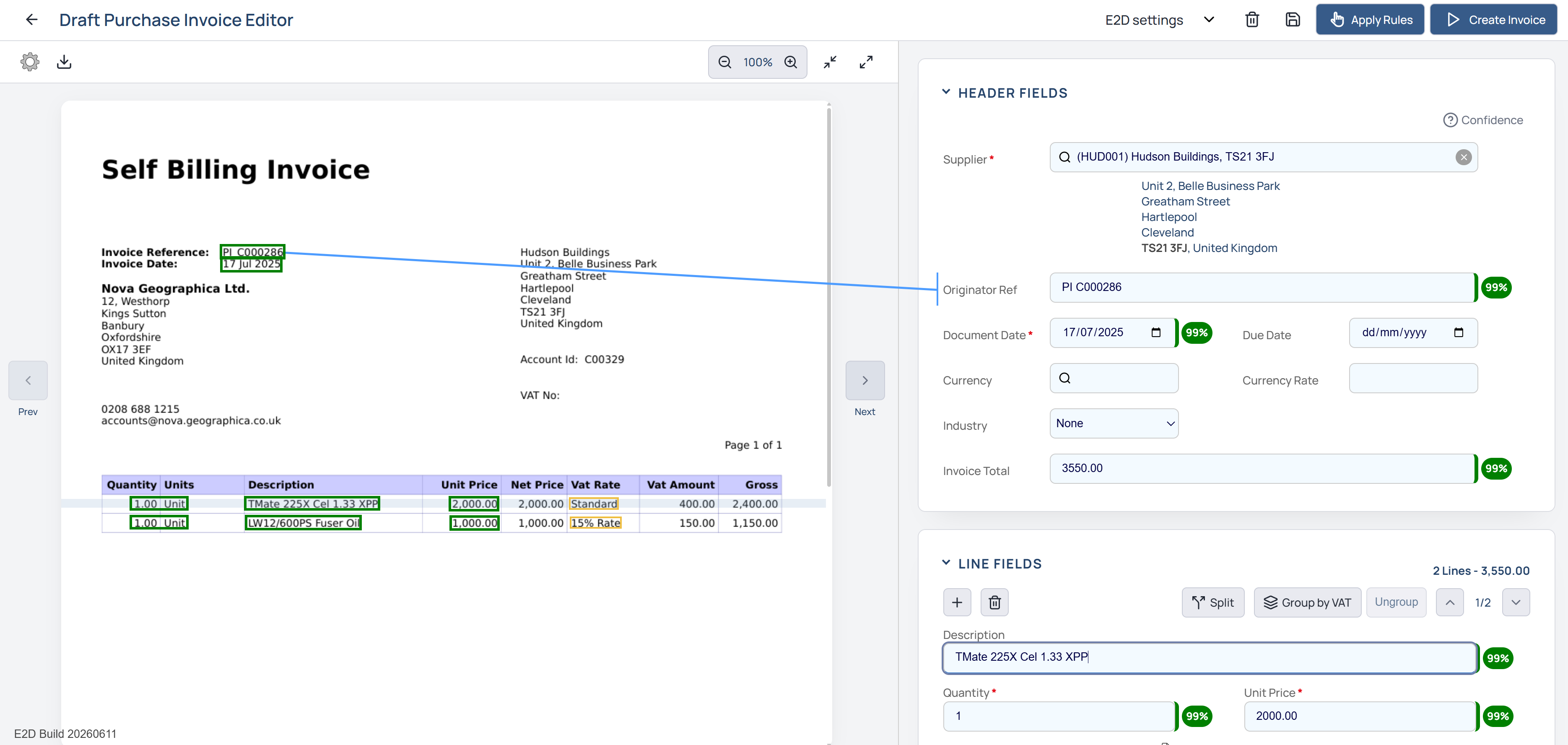
Click an invoice to open the Draft Purchase Invoice Editor.
The system:
-
Scans the invoice
-
Extracts key data: supplier, dates, totals, VAT, lines
-
Maps data into Aqilla fields
How to navigate the Draft Editor
-
Use Previous and Next buttons to browse invoices
-
Expand or reduce images
-
Jump to Settings pages (permission dependent)
-
Minimise Header and Line sections
-
Hover over image data to find the relevant field
-
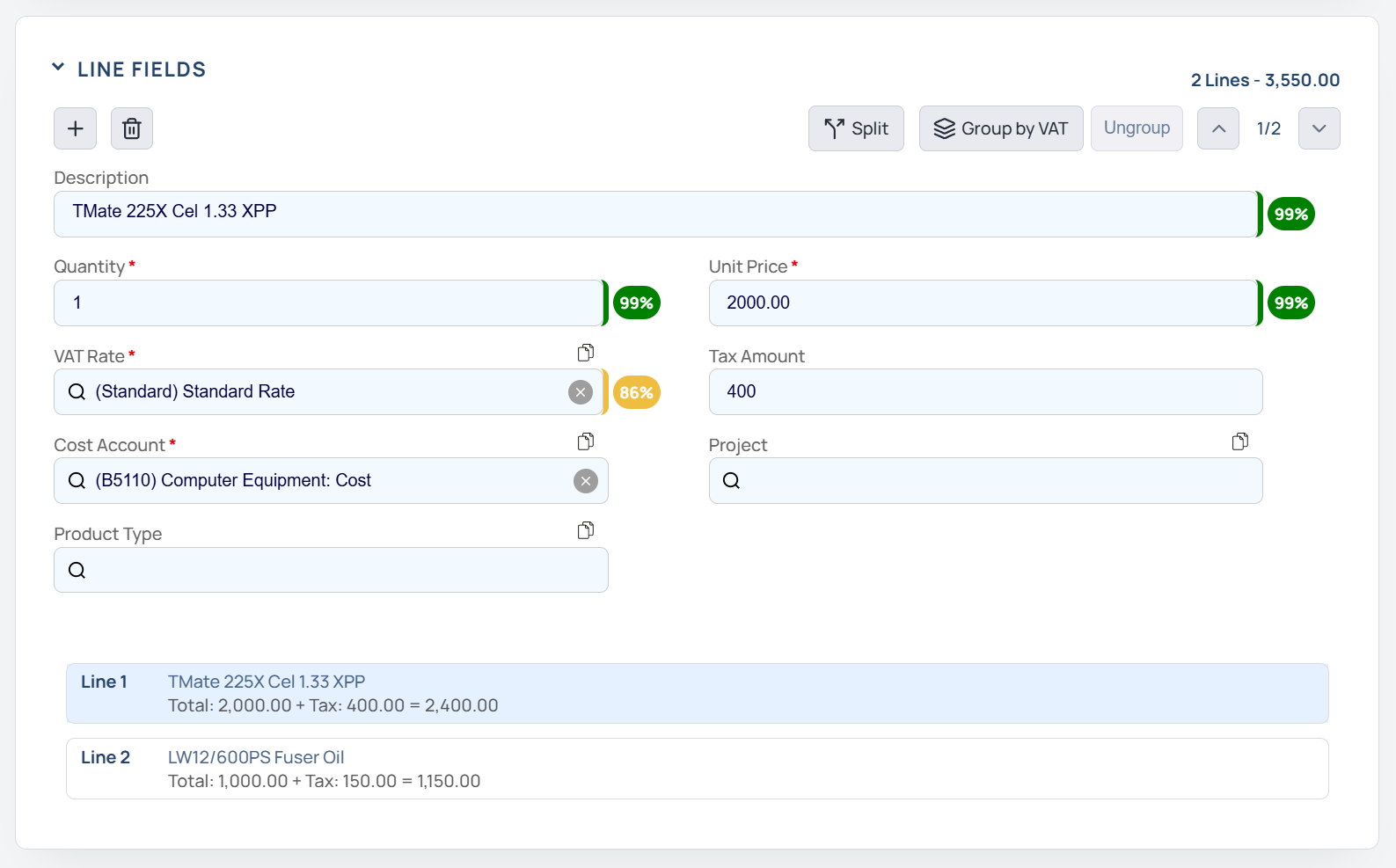
Split lines by %
-
Consolidate lines by VAT rate
-
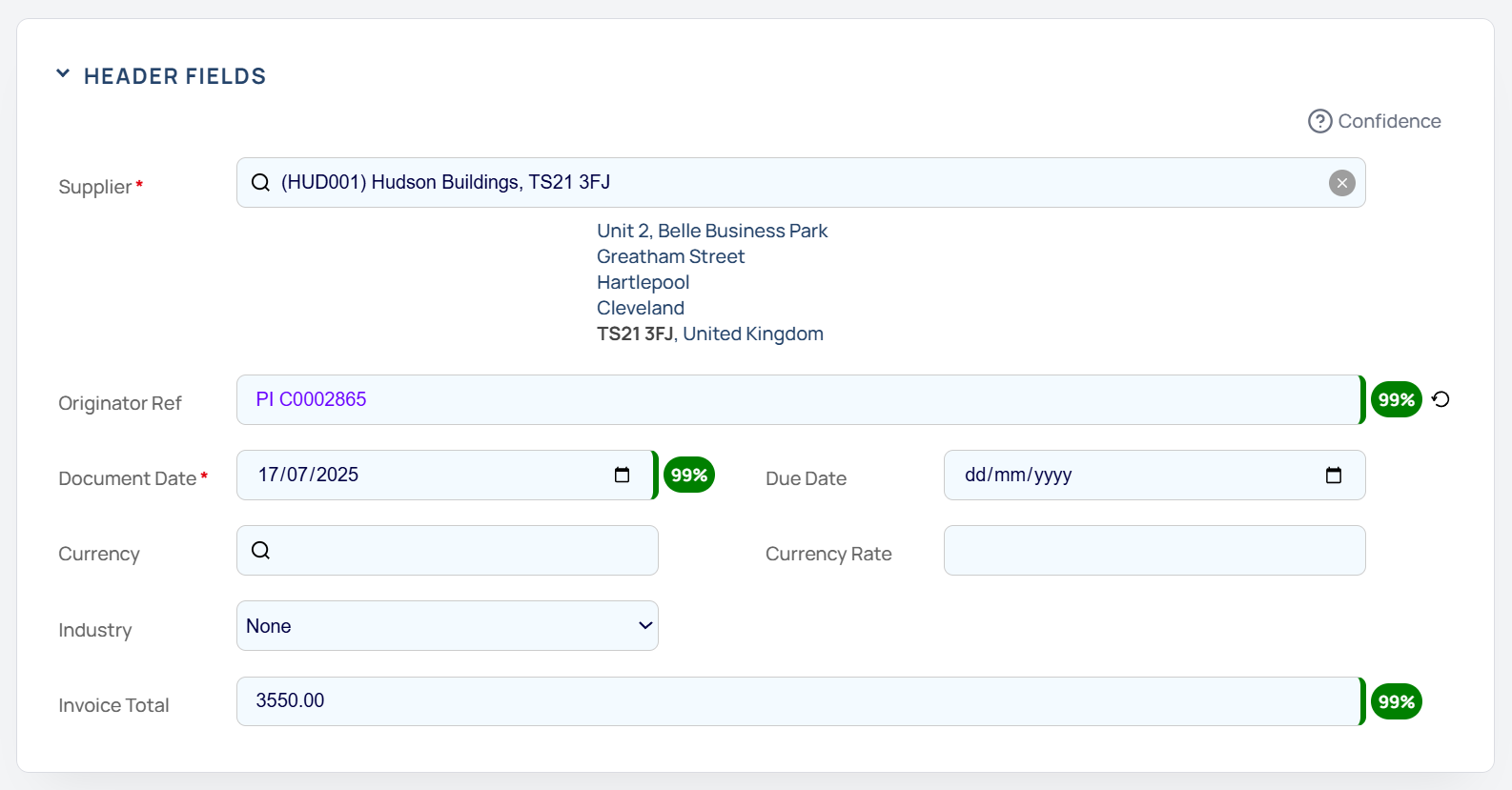
A Confidence Rating is assigned to each field
What you should do here:
-
Check all header fields (supplier, date, totals)
-
Ensure the Invoice total matches the sum of the line items
-
Review all line items
-
Add missing required fields (such as cost account)
-
Correct anything with low confidence
You can also:
-
Save changes
-
Download the invoice
-
Move between invoices using Previous and Next
Step 5: Process the Invoice
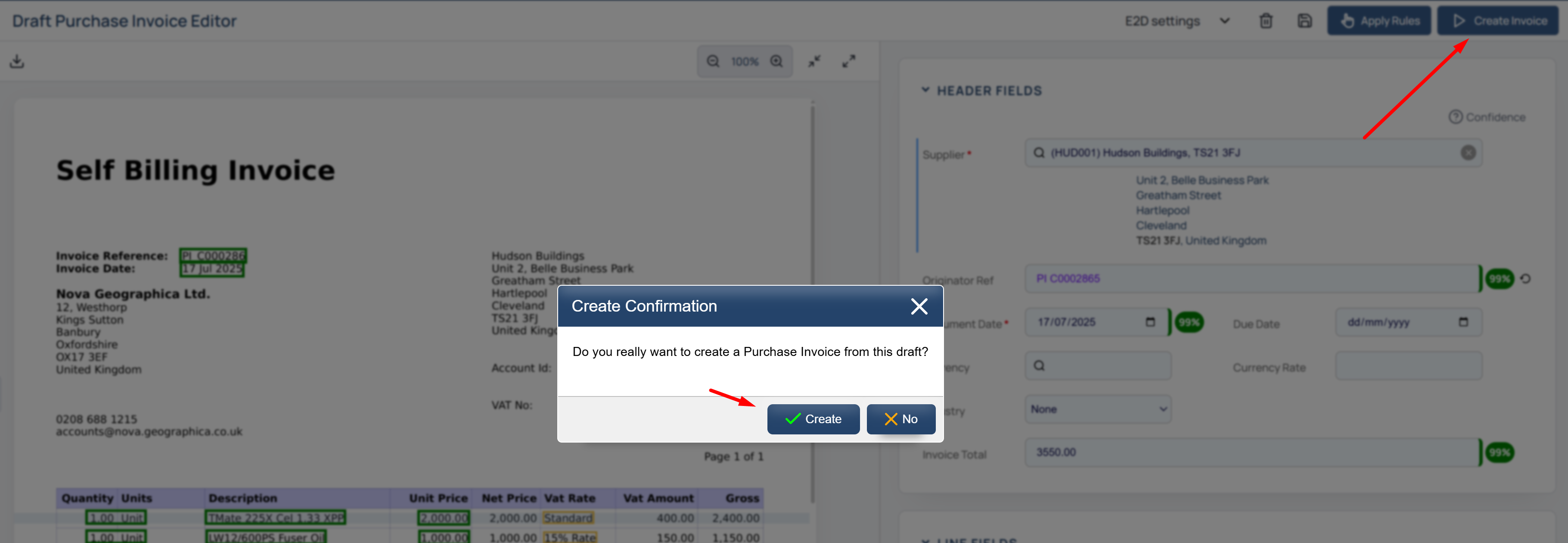
Once all required fields are complete and correct:
-
Click: Create Invoice (Play button)
The system will:
-
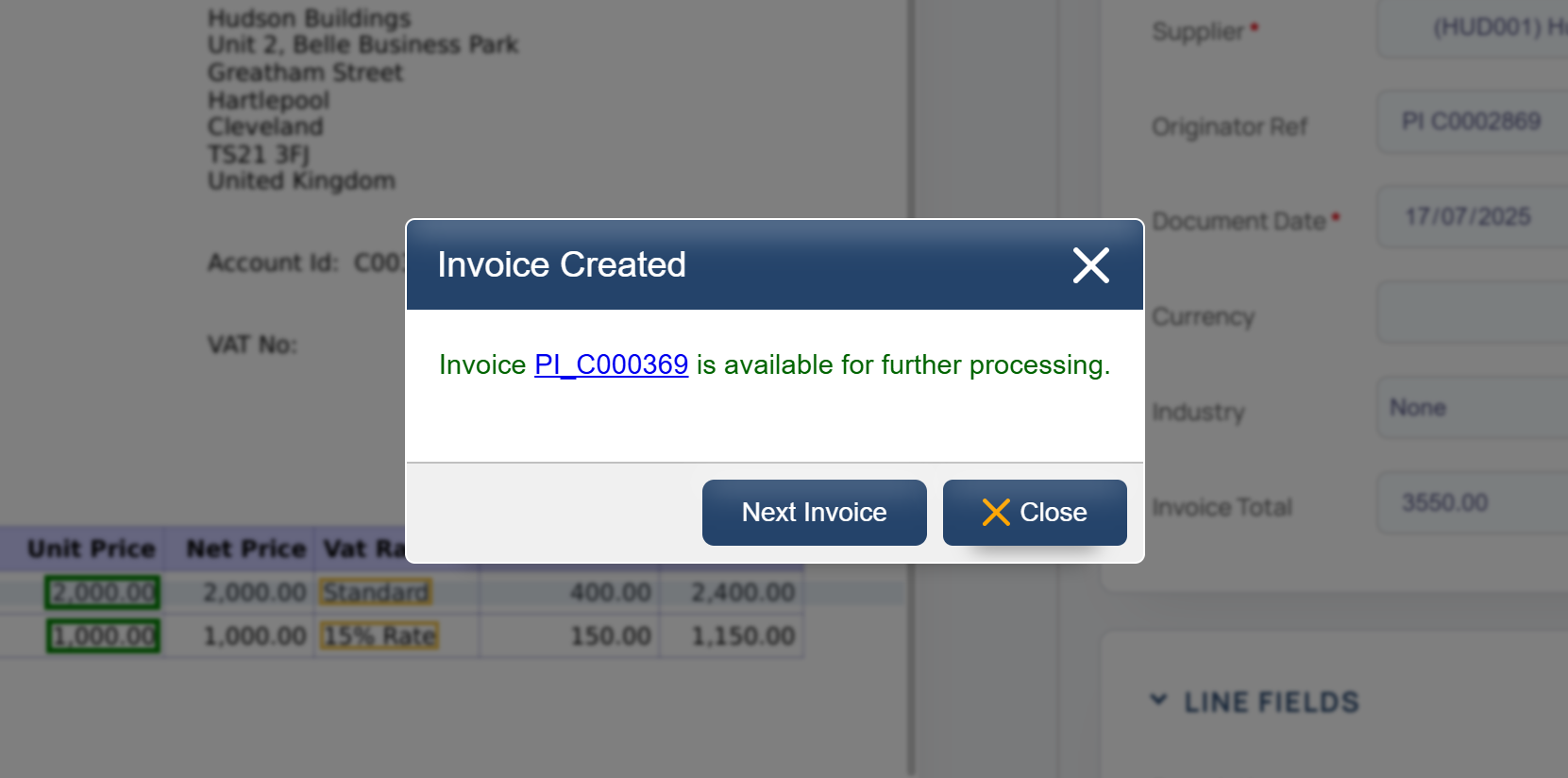
Generate a Purchase Invoice
-
Assign a document reference number
-
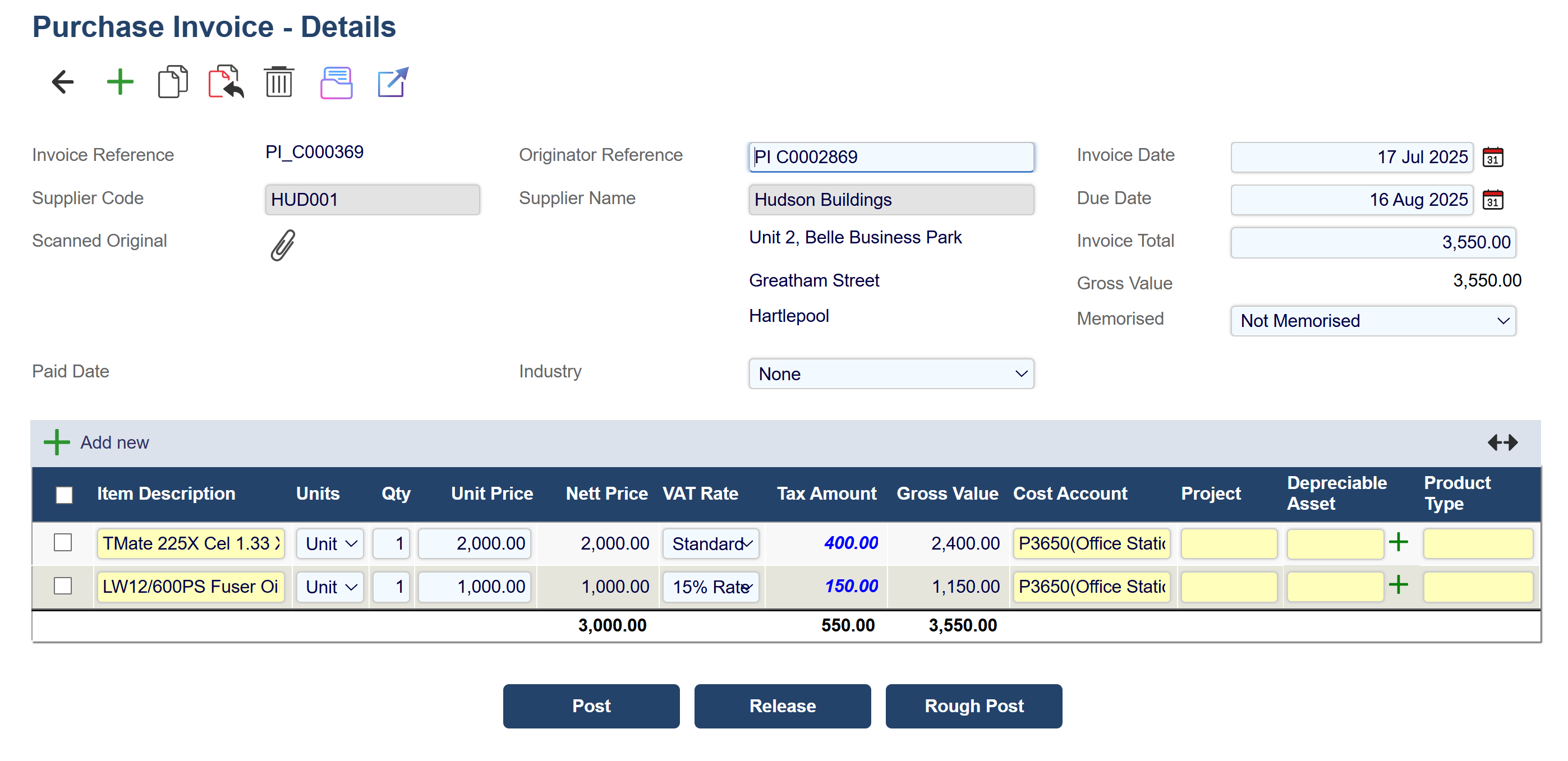
Store it under Documents > Purchase Invoices
Clicking the
Document Reference number directs you to the Purchase Invoice
The invoice will be created in an Entered state, meaning you can still:
-
Edit
-
Release
-
Post
-
Delete if needed
Step 6: Handle Errors (If Any)
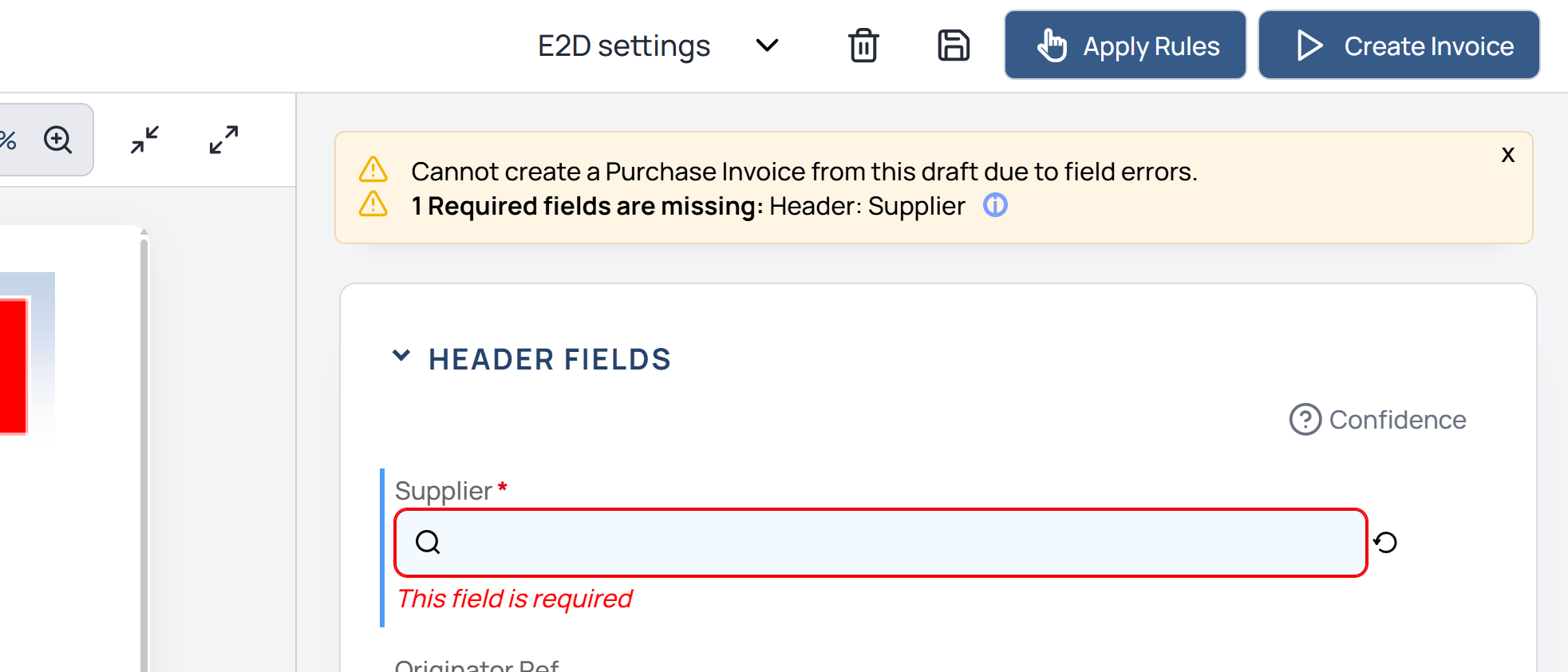
If something is missing or incorrect, the system will show an error.
Common issues:
-
Required fields are missing
-
Supplier not identified
-
Custom attributes not completed
Fix the issue in the Draft Editor, then process again.
Step 7: Optional Automation and Settings
You can further improve efficiency with system settings.
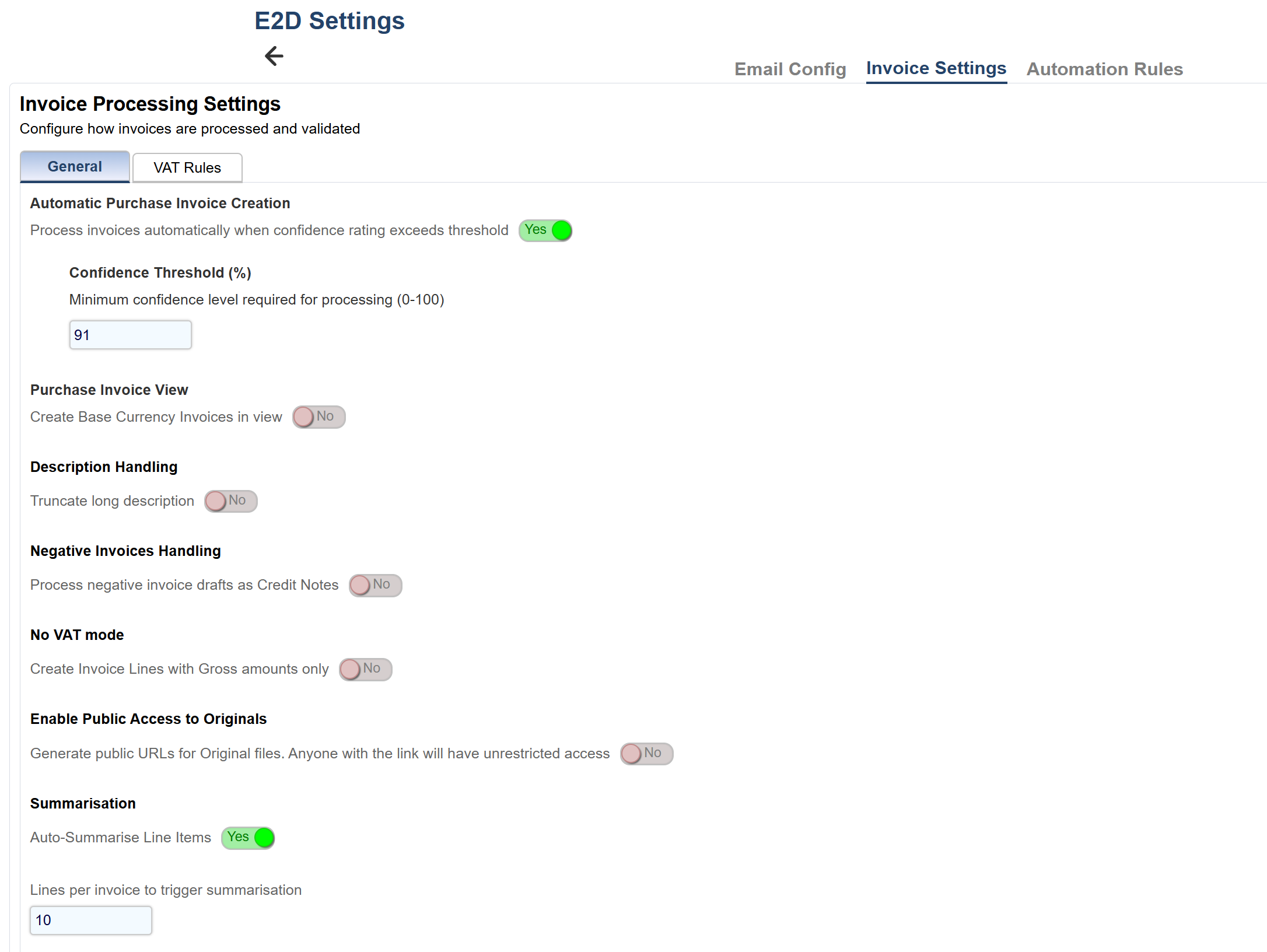
Automatic Processing
You can set a confidence threshold so invoices are automatically processed if accuracy is high enough.
Example:
If all fields are above 90 percent confidence, the invoice skips manual review.
VAT Handling Options
You can control how VAT is calculated when not clearly provided:
-
Adjust VAT in last line
-
Add a VAT discrepancy line
-
Create separate VAT lines
Description Handling
Automatically trim long descriptions so invoices can still process.
Step 8: Use Automation Rules (Optional but Powerful)
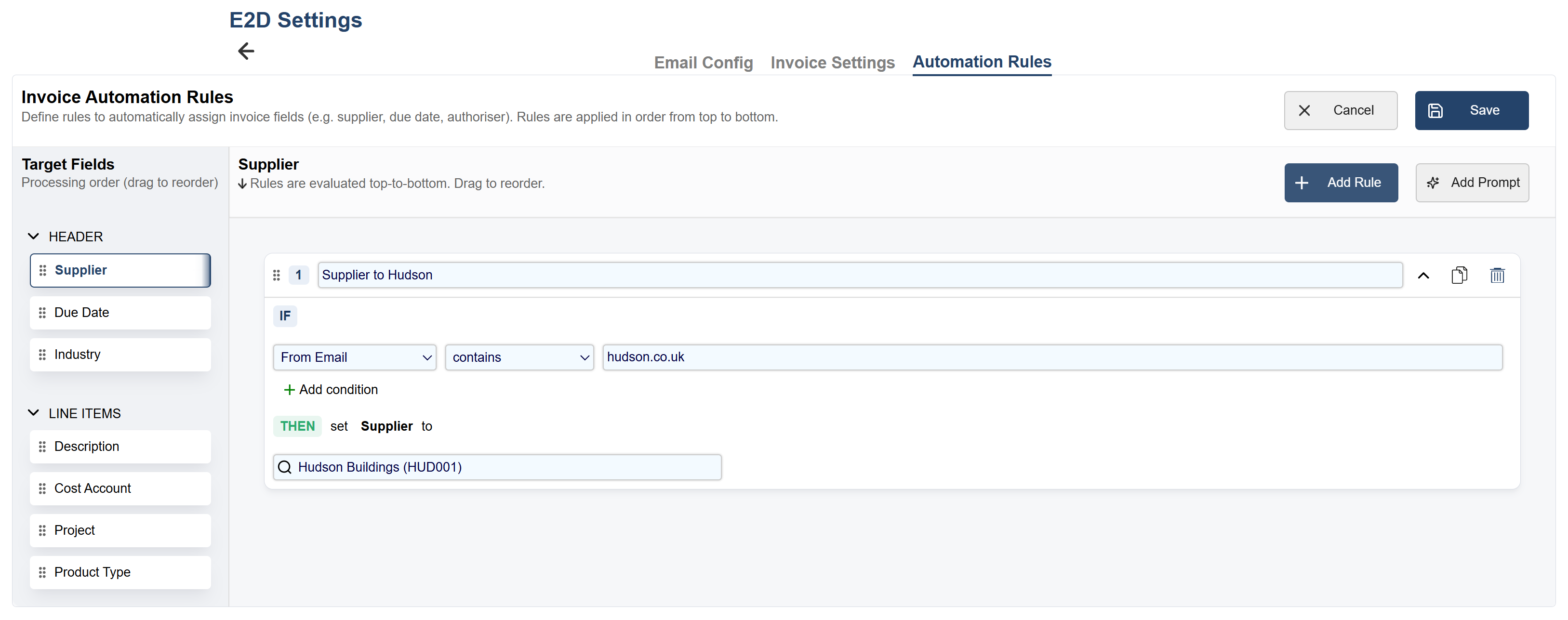
Automation rules help reduce manual work.
They allow you to automatically populate fields based on conditions.
Example:
If sender email contains “hudson.co.uk”
Then set Supplier = Hudson Buildings
You can apply rules to:
-
Supplier
-
Header fields
-
Line fields
-
Projects
-
Custom attributes
This ensures consistency and speeds up processing.