
Output documents (e.g. sales invoices) are typically e-mailed to customers and suppliers.
If you wish to use this feature, please consult this page on how to e-mail documents.
The e-mail recipient address used depends on the type of document as shown below:
|
Sales Invoice |
Customer > Invoice Recipient Email |
|
Sales Credit Note |
Customer > Invoice Recipient Email |
|
Debtor Statement |
Debtor Account > Statement Recipient Email |
|
Purchase Order |
Supplier > Purchase Recipient Email |
|
Creditor Remittances |
Creditor Account > Remittance Recipient Email |
|
Self Billing Invoice |
Supplier > Purchase Recipient Email |
Sales invoices and credit notes, purchase orders and self-billing invoices
Can be sent using the relevant document type under the Documents and Enquiries tabs. If you use the Enquiries tab you will also be able to filter using various criteria. (See Enquiry Profile.)
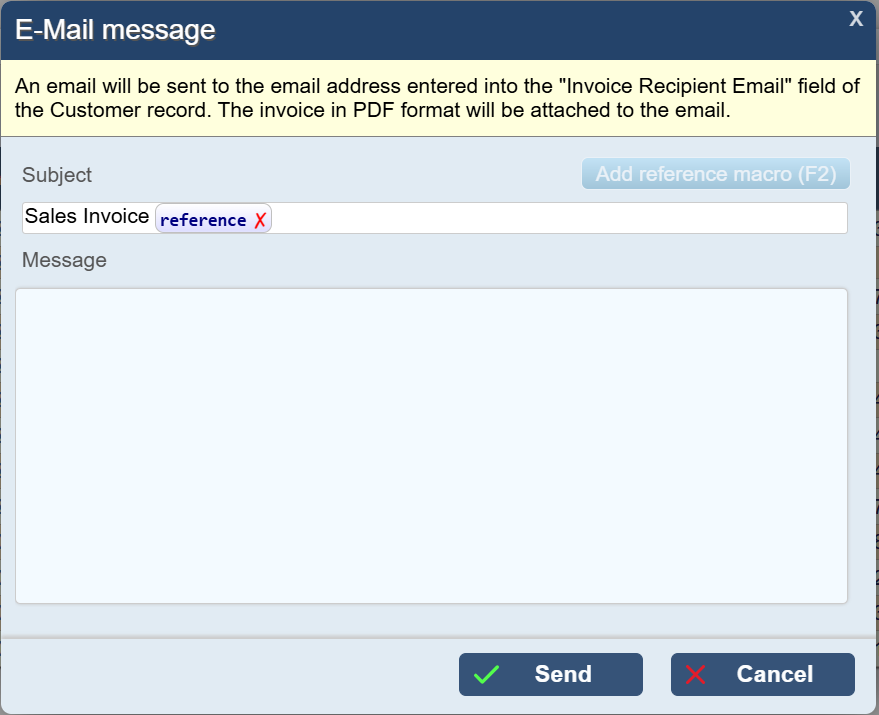
If you select a single document to send the following pop-up will appear on the right.
You can change the subject and enter a message.
If you e-mail another invoice (or invoices) the last message you used will be displayed by default.
You should only use the default message INVxxxxx and x more document(s) if all the documents are for the same customer or supplier - documents will be sent to the correct e-mail address but the title will be confusing. If you send documents to several customers or suppliers in one batch you should use a generic subject and message.
Debtor statements and creditor remittances
Are sent using Debtor Statements and Creditor Remittances respectively.
Note the checkbox is used to suppress not select debtors and creditors.
Aqilla does not keep a record of documents sent by e-mail so you should cc or bcc an e-mail address under your control to keep a record.
Reply E-mail and handling bounce backs
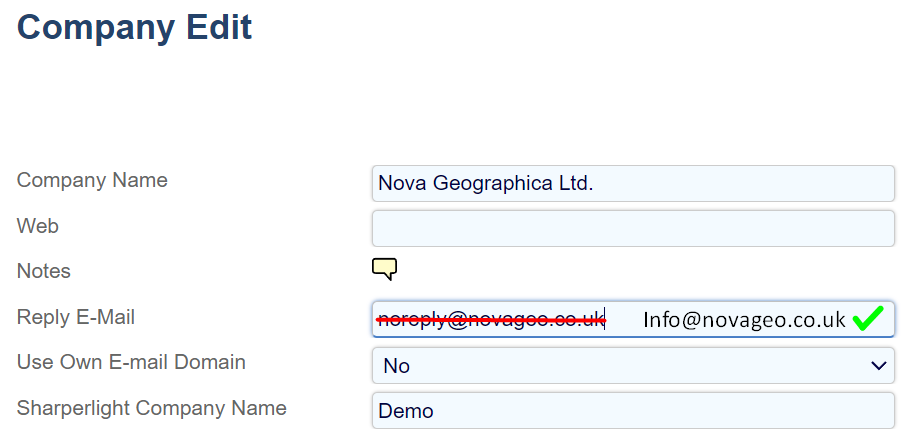
When you send a document using Aqilla, the Reply Email from the Company Edit page will show up as the sender.
The standard email in the company Reply E-mail is noreply@aqilla.com.
It is highly advisable to change this email to an email you control
See the screenshot on the right for example.
You will find be able to change the Reply E-Mail by going to Configuration -> Companies and replace the noreply@aqilla.com email on each company in your instance.
Why is it a good idea to change the no-reply e-mail address?
If you are unsuccessful in sending a mail to a customer with an invoice, the bounce back message let you know that the email was not delivered.
This is typically sent to one of the contacts on the Company Edit screen. It is a very useful feature for keeping an eye on your email traffic.
You can fill out the contact list on the lower half of the company edit screen.
However, if you are not using this feature, the bounce back email will be sent to the default company e-mail. Which is noreply@aqilla.com by default, and it means that your company will not be notified of the failure to deliver the email.
Changing this e-mail address to an email you control and monitor means that you will be notified when an e-mail is not sent correctly and the customer did not receive their document.
