
1) Introduction
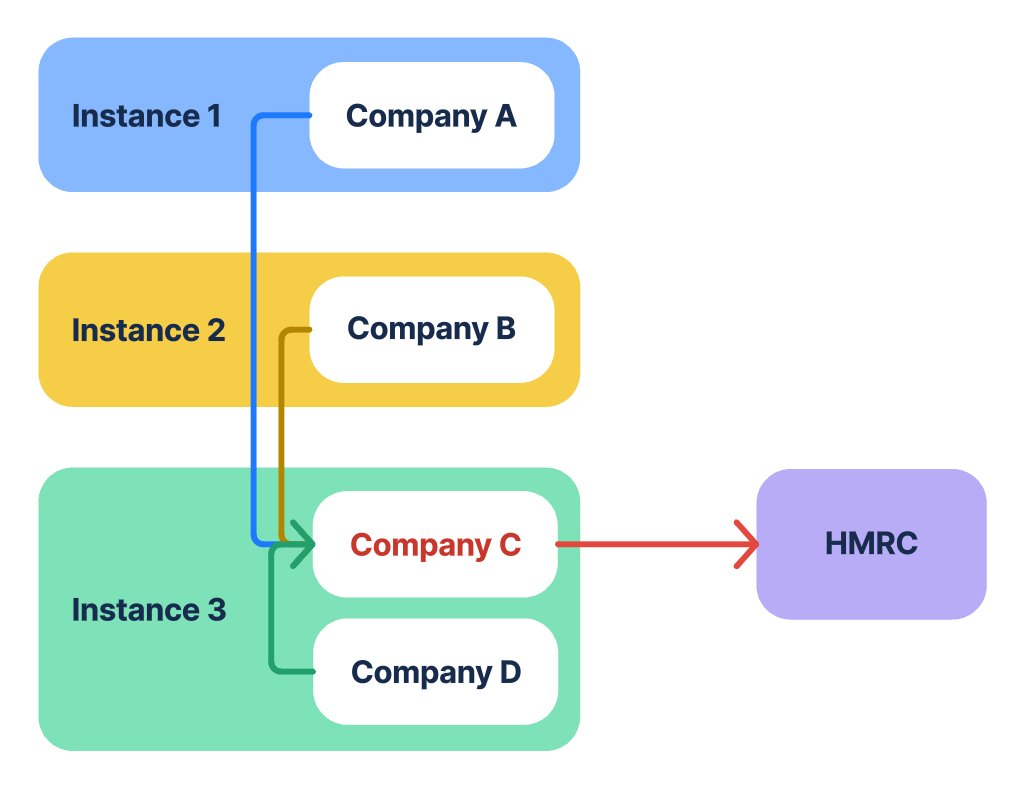
HMRC allows two or more corporate bodies to account for VAT under a single registration number with one of the corporate bodies in the group acting as the representative member, thus:
See HMRC's Guidance about VAT Groups.
Aqilla Ltd does not provide tax advice. Please consult with HMRC and/or your advisors about your organisation's tax obligations.
For organisations that are part of a VAT Group, HMRC has deferred the obligation to report using MTD to periods starting on or after 01 Oct 2019. Some screenshots in this help article are based on HMRC test data
To report to HMRC as a VAT Group (using MTD) it is necessary to set one company in the group as the main company (the "VAT Group") and other companies in the group as VAT subsidiaries. In effect:
The VAT Group company will be the primary company in the VAT group when retrieving the VAT Obligation and submitting the VAT Return to HMRC, VAT subsidiaries will submit to the main company.
Companies in a VAT Group can exist in one or more Aqilla instance(s) - see Multi-Company Accounting (Section 2) for an explanation of multiple companies in a single instance.
You can have several VAT Groups in one or more Aqilla instances.
Companies must have a VAT Group Registration number.
Step-by-Step for VAT Groups.
-
Retrieve and create the Group obligation from the primary company. (Nova Geo Ltd.)
-
Go to the subsidiary companies, and retrieve the group VAT return. (Nova Holdings, Nova Group.)
-
Run and submit the VAT return in ALL subsidiaries
-
Submitting a VAT return from a subsidiary will only submit to the primary company (The VAT Group, NOT HMRC.)
-
-
Run and submit MTD for the primary company. Nova Geo Ltd.
-
HMRC will receive all VAT returns.
Submitting a VAT Return in either the primary or subsidiary company is considered permanent.
If you wish to make changes to the VAT Return, please delete and recreate the MTD obligation to see the updated values.
2) Setting up a VAT Group
The VAT registration for each company must be the same. Each company in the group needs to be given a VAT Group role (None, VAT Group, VAT subsidiary). This is done in the VAT Reporting section at Configuration > Companies.

The VAT Group Role (and Report Currency) does not appear until HMRC VAT MTD enabled is set to Yes under Configuration > Companies.
When VAT Group Role is set to VAT Group a new option VAT Group Settings, which opens the following view.
You have to create each of your subsidiary companies on this page and copy their Client ID and Secret to their VAT group Settings.
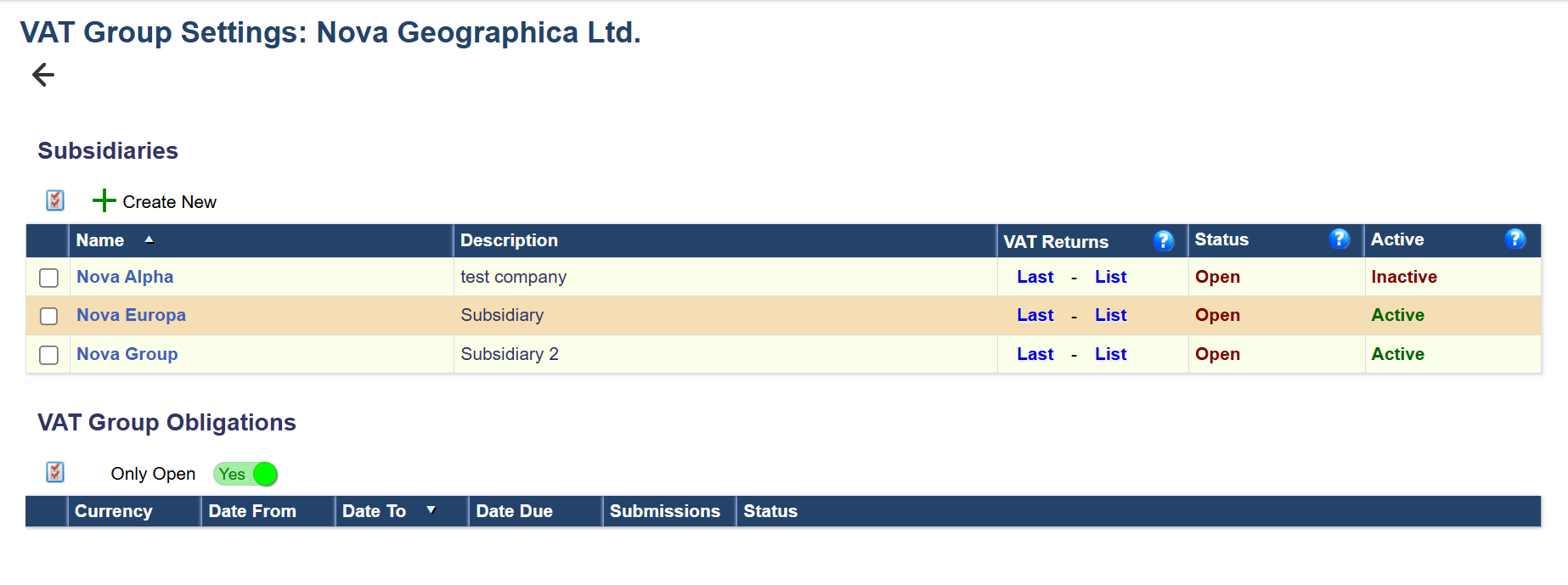
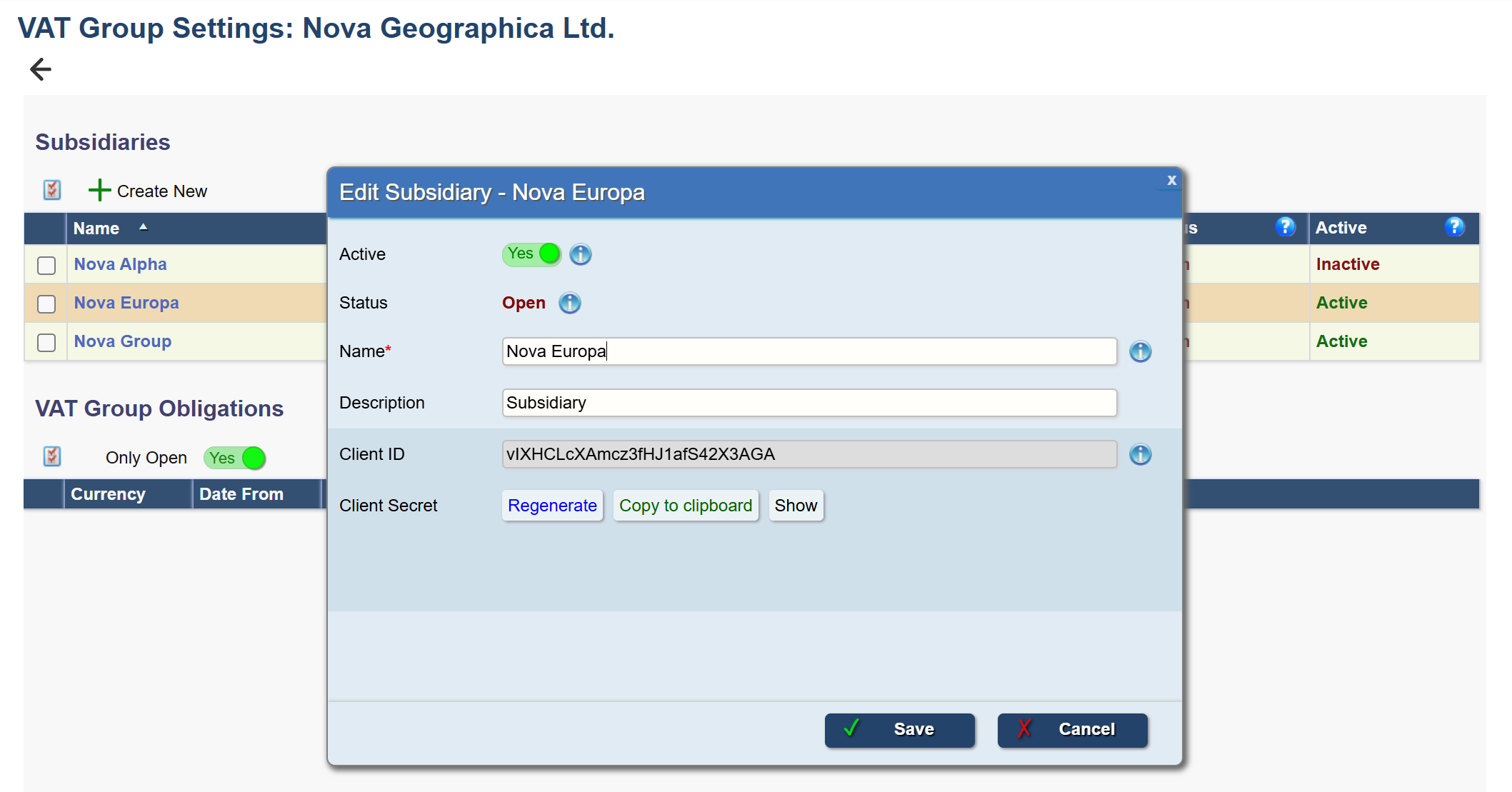
Subsidiary companies.
A VAT subsidiary are assigned a Client ID and Client Secret, which are the credentials that enable a VAT subsidiary to securely submit returns to a VAT Group.
Under VAT Reporting on Configuration > Companies
Each Subsidiary must have HMRC VAT MTD Enabled = Yes and their VAT Group Role set to VAT Subsidiary.
You can click on Settings here or go to Configuration > VAT Group settings
Enter the Instance Name. E.G. (www.aqilla.net/novageo)


After you have created the subsidiaries in the VAT Group, you need to link these to the VAT Group.
Navigate to the VAT Reporting section at Configuration > Companies in each subsidiary company and set HMRC VAT MTD enabled to Yes and VAT Group = VAT Subsidiary, as described above.
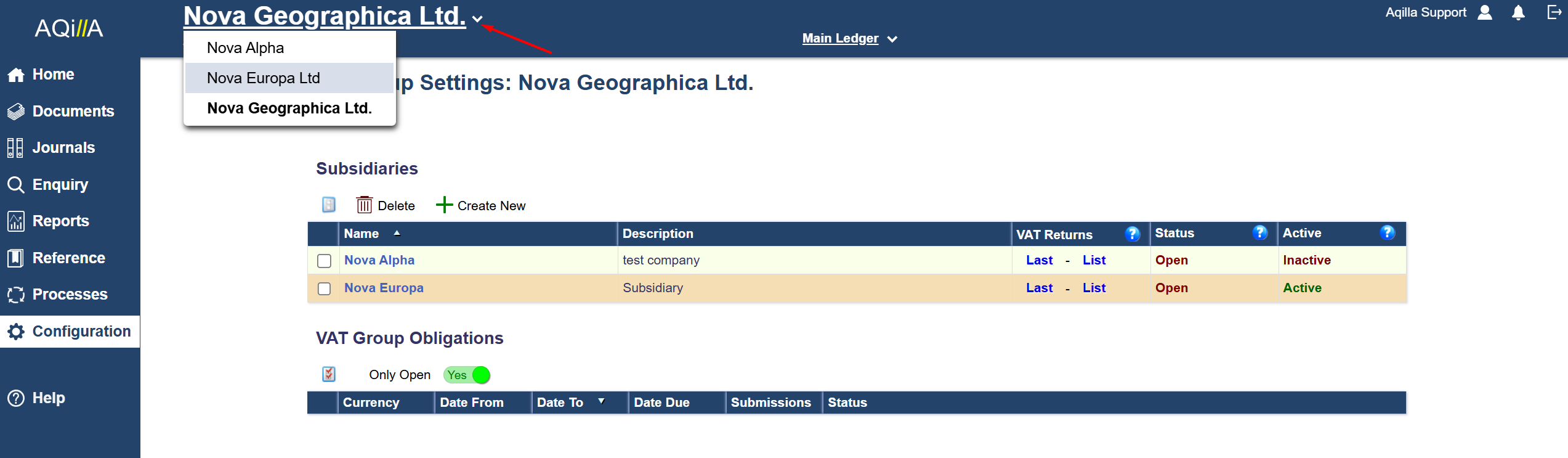
You can change the company name by clicking here in Aqilla >
VAT Group are suported both within the same instance or across multiple instances.
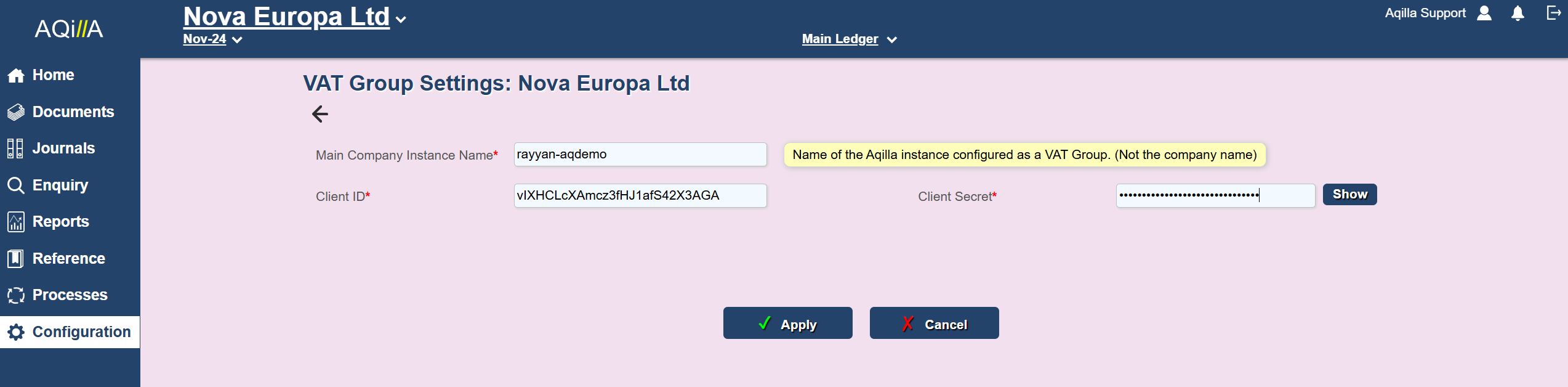
In each VAT Subsidiary > Go to Configuration > VAT Group Settings:
Specify the Aqilla instance in which the VAT Group is located at Main Company Instance Name.
Enter Client ID and Client Secret.
Tip! It's helpful to copy / pasteClient IDs and Client Secrets to Notepad if you are setting up several subsidiaries.
3) Creating a Group VAT Return
The process is for each subsidiary company to create their own VAT return using the HMRC VAT MTD function under the Reports tab. This behaves exactly as the standard MTD VAT processing except when the report has been finalised it is submitted to the VAT Group using the option Submit to VAT Group.
The company defined as the VAT Group creates its own VAT return in the same way, but an additional column is displayed in the VAT return showing the group return. When all the VAT returns are complete, the group return is submitted to HMRC.