Personnel
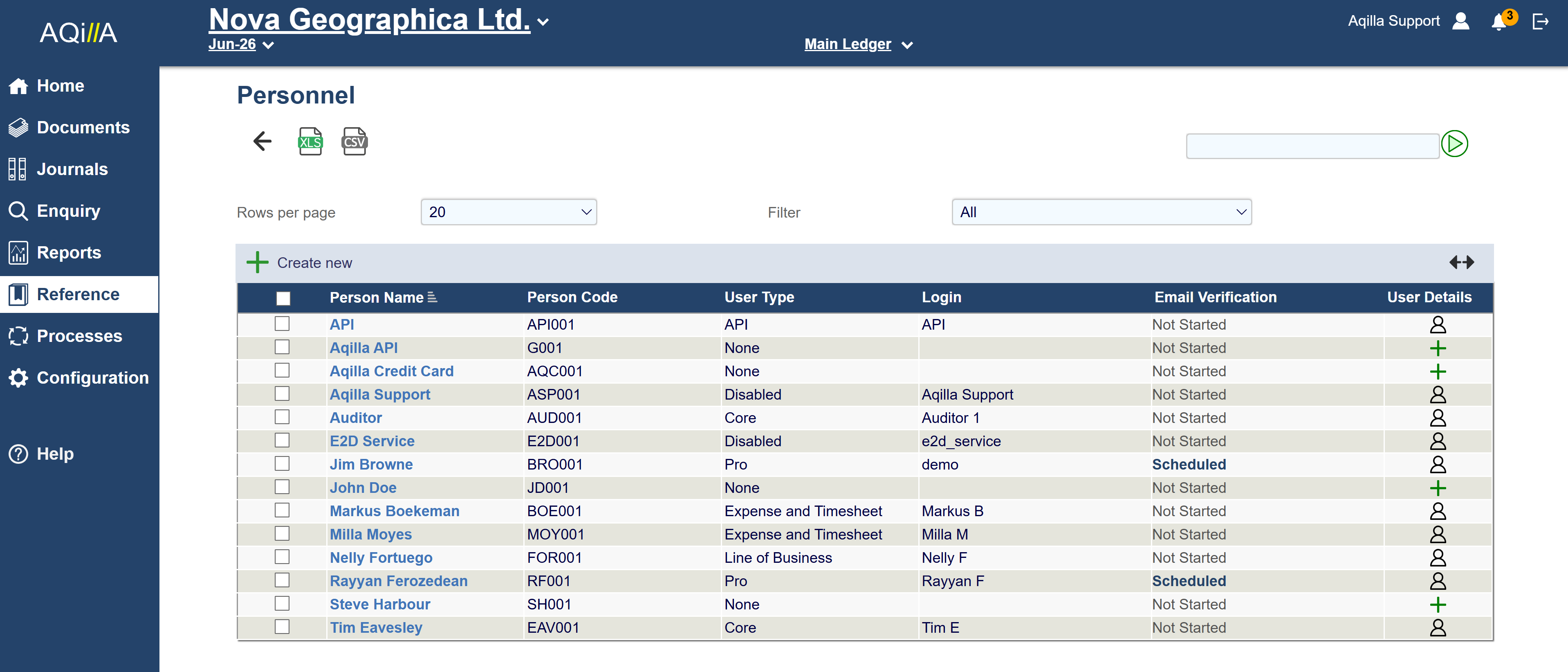
The Person Edit view is used to maintain details about a person in your organisation. Some people may also be Aqilla users. Please consider that distinction when reading this topic.
Please note that Aqilla policy is that we will not maintain users on your behalf in order to protect your organisation's security.
User Creation Guide
Person Edit Fields
A sample Person Edit view - excluding Contacts - is shown below:
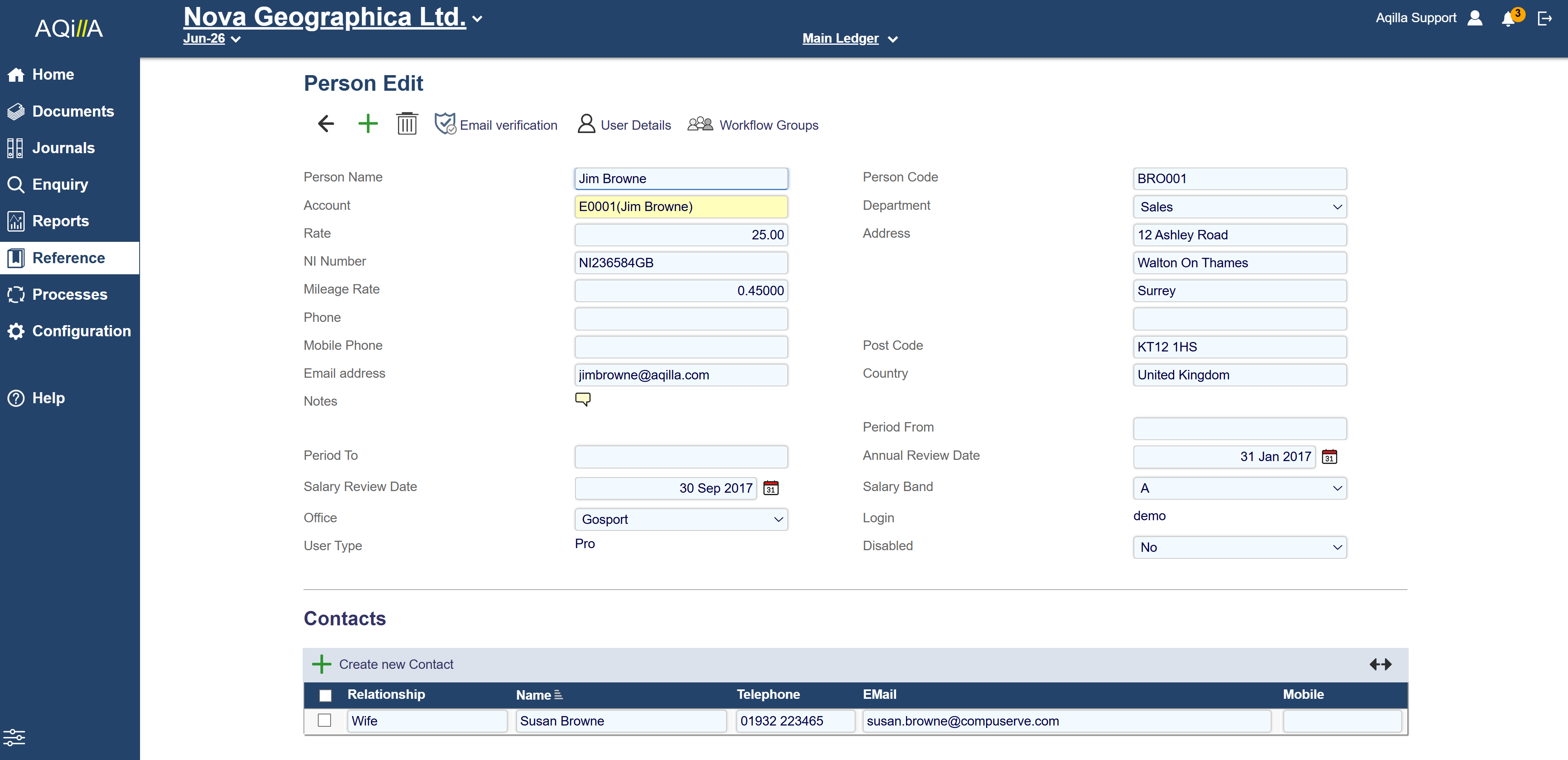
Each field on this record is described below. Mandatory fields are highlighted thus.
|
Field Name |
Description |
|---|---|
|
Person Name |
The person name is alphanumeric (60 characters max) and must be unique within the instance. |
|
Person Code |
The person code is alphanumeric (30 characters max) and must be unique within the instance. |
|
Account |
The creditor account at Reference > Creditor Accounts that is used to pay the person's expenses. |
|
Rate |
The default hourly rate used to calculate timesheet charges; see Documents > Timesheets. |
|
Address (1) |
The person's address; line 1. |
|
NI Number |
The person's national insurance number. |
|
Address (2) |
The person's address; line 2. |
|
Mileage Rate |
The person's mileage rate used in calculating travel expenses - format is 99.99999 |
|
Address (3) |
The person's address; line 3. |
|
Phone |
The person's phone number (e.g. landline). |
|
Address (4) |
The person's address; line 4. |
|
Mobile Phone |
The person's mobile phone number. |
|
Post Code |
The person's post code. |
|
E-mail Address |
The person's email address. Mandatory when creating or updating a record and required for Email Verification. |
|
Country |
The person's country. |
|
Notes |
Notes about the person - see Navigation > Notes. |
|
Period From |
Determines the periods into which the person (if a user) can post relative to System Current Period - e.g. -1 (blank = no limit) |
|
Period To |
Determines the periods into which the person (if a user) can post relative to System Current Period - e.g. +3 (blank = no limit) |
Contacts
You can store any number of contacts against a person. Contacts are often used to record the next of kin information. A sample list of contacts is shown below and the fields are all self-explanatory.

User Details
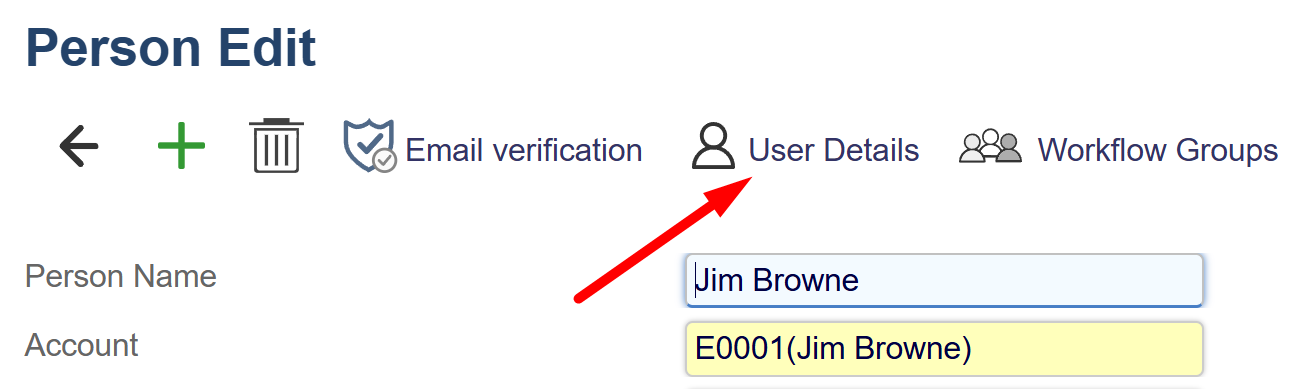
To convert a person into a user click on the User Details icon:
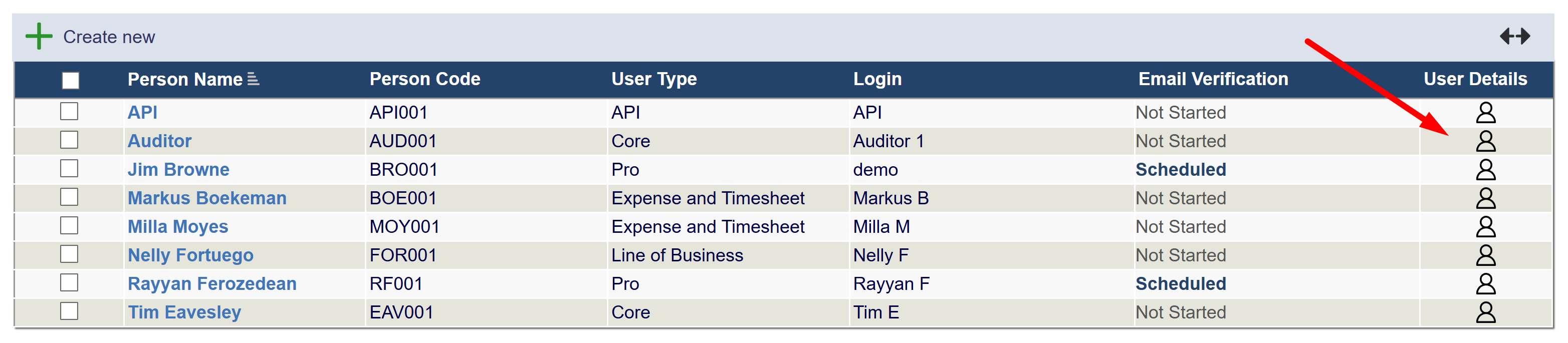
You can also launch the User Details dialogue using the icon in the list of people:
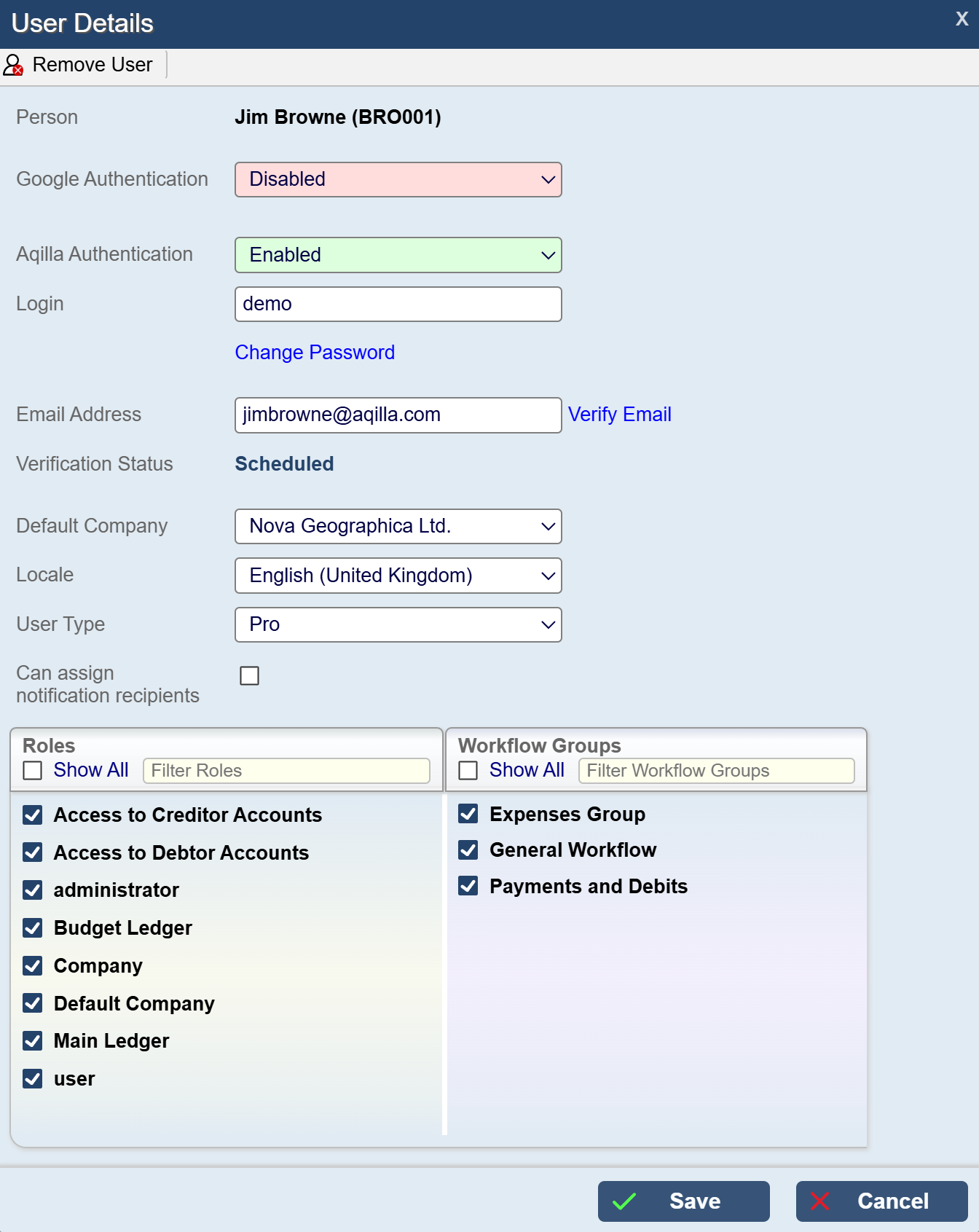
This opens the User Details dialogue. It includes helpful error messages, so only the key points are listed below:
-
The first time you convert a person to a user, you can copy roles and workflow groups from an existing user using Copy From.
-
Email Address is required for setup and email verification. Clicking “Verify Email” will send out an email to the address for the user to authenticate. The Verification status will update accordingly.
-
You can set the user’s default company and locale. The user must still have a role that grants access to that company, and the locale controls the language used in Aqilla.
-
User Types determine the user’s access level in Aqilla, often more than roles. See the User Type chart and pricing page.
Changing the User Type affects billing.
-
Select Can assign notification recipients to let the user send Smart Event notifications to other users.
Disabling a User
There are 2 settings
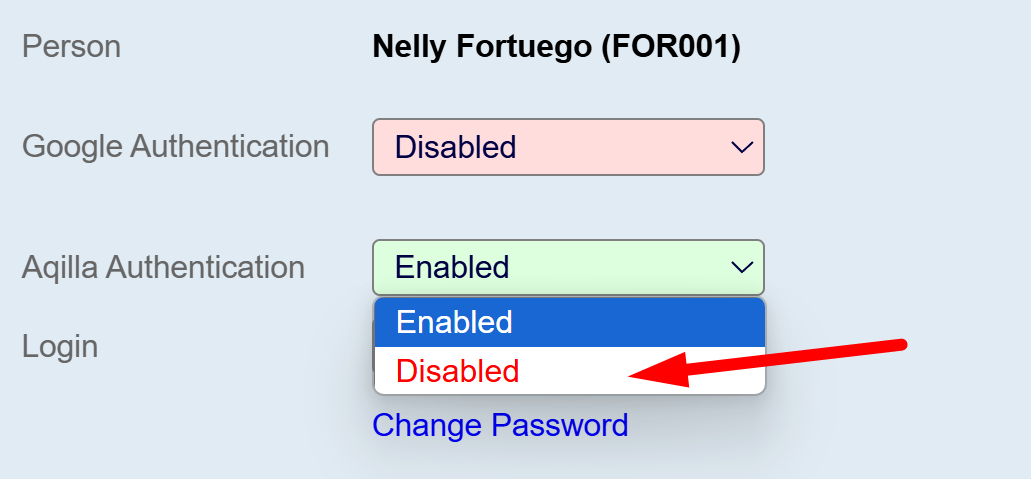
Aqilla Authentication:
-
Disabling Aqilla Authentication will disable the users login, preventing them logging into Aqilla, otherwise the User is still active.
Setting Google or Aqilla Authentication to Disabled will only disable the users login, not the billing.
Please see Articles > Google Authentication if you are using this authentication method.
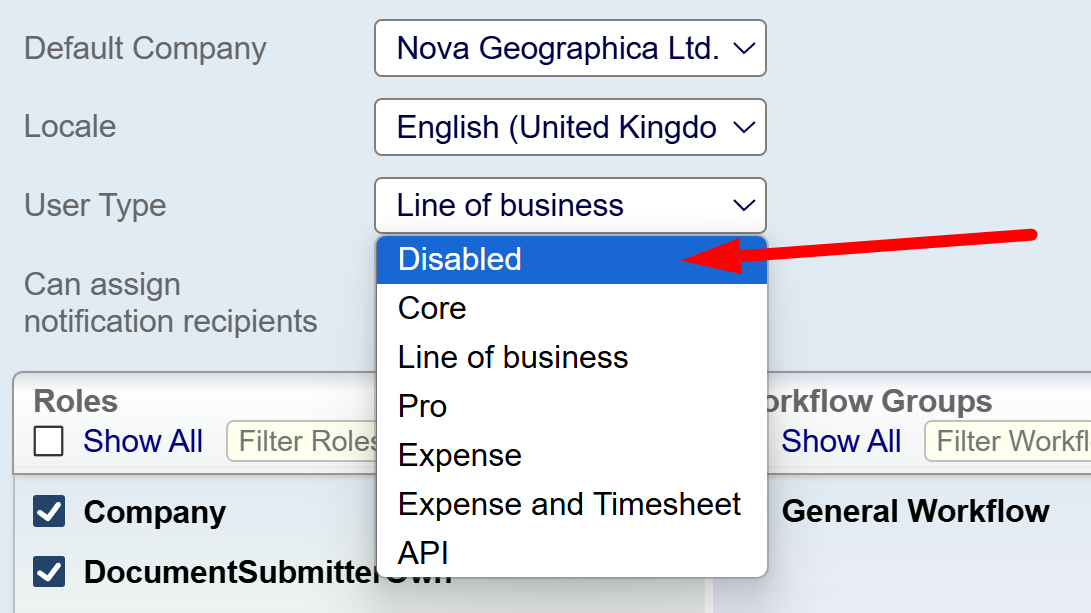
User Type:
-
Disabling User Type will completely disable the user from Aqilla.
-
This setting will reflect on the billing.
Please note: User Type must be set to Disabled, or you will continue to being billed for the user.
Workflow Groups
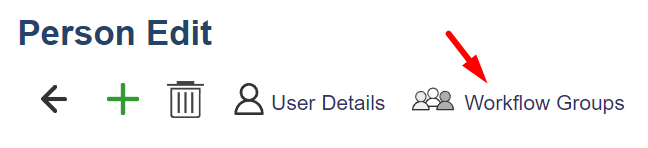
The Workflow Groups icon opens the Workflow Groups dialogue.