Creating a Notification Template
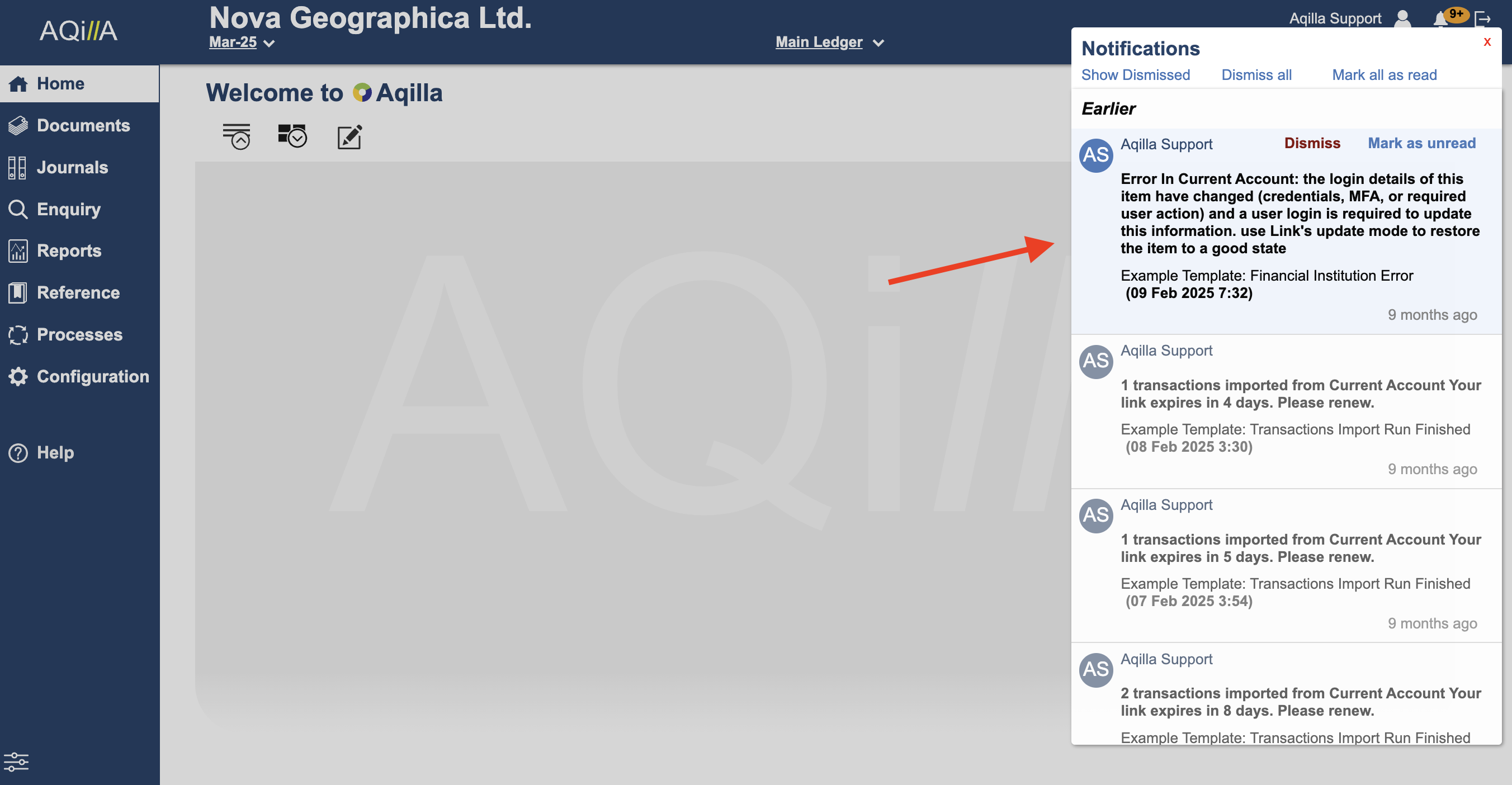
If you wish to be notified when a transaction is successful or has failed then you need to create a new notification template for your Online Financial Institution.
Please note you need to create a template for Each Connection you have in Online Financial Institutions.
This will require Smart Events to work.
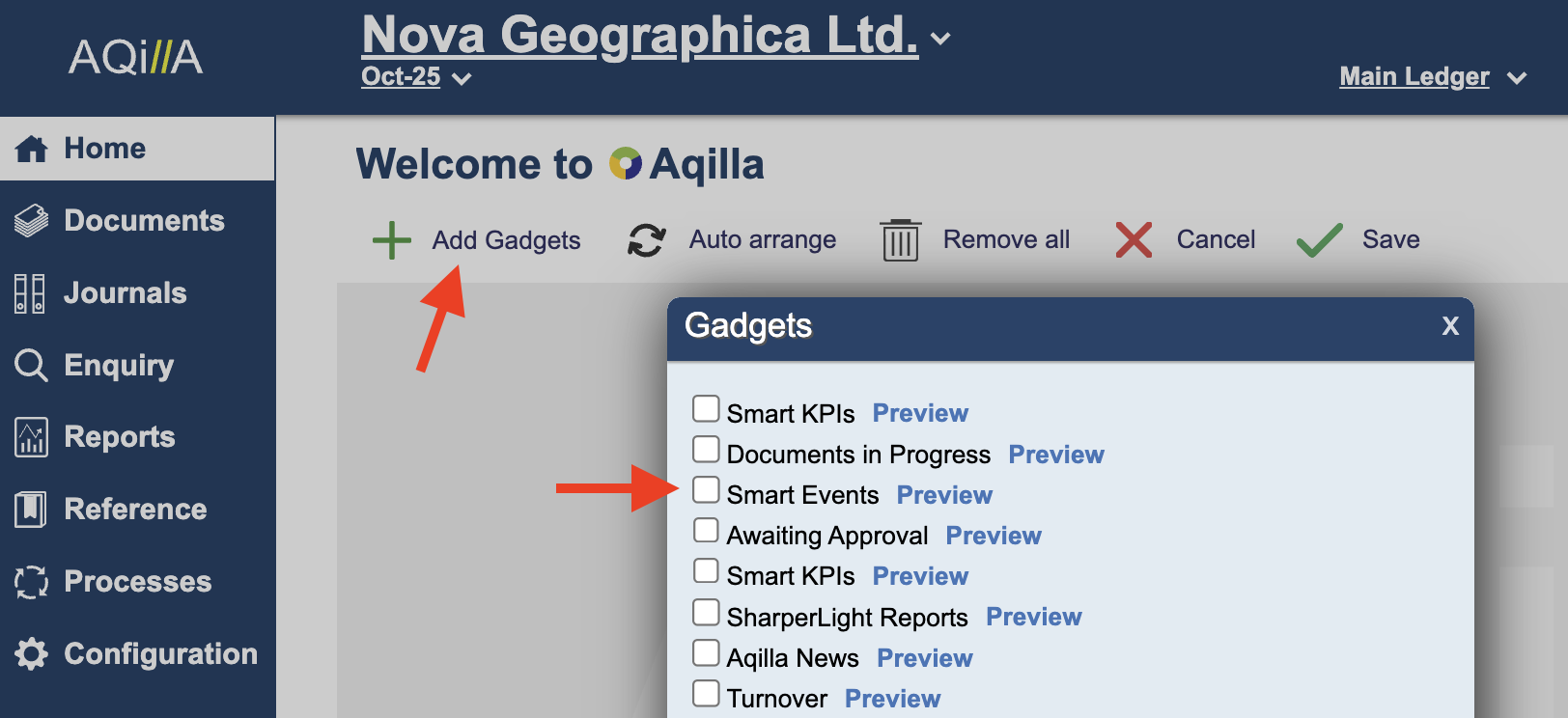
To access Smart Events, go to the home screen, click the edit icon under the Welcome title, then select Add Gadgets. From the list of available gadgets, click Smart Events.
The Smart Events gadget is now on your home screen.
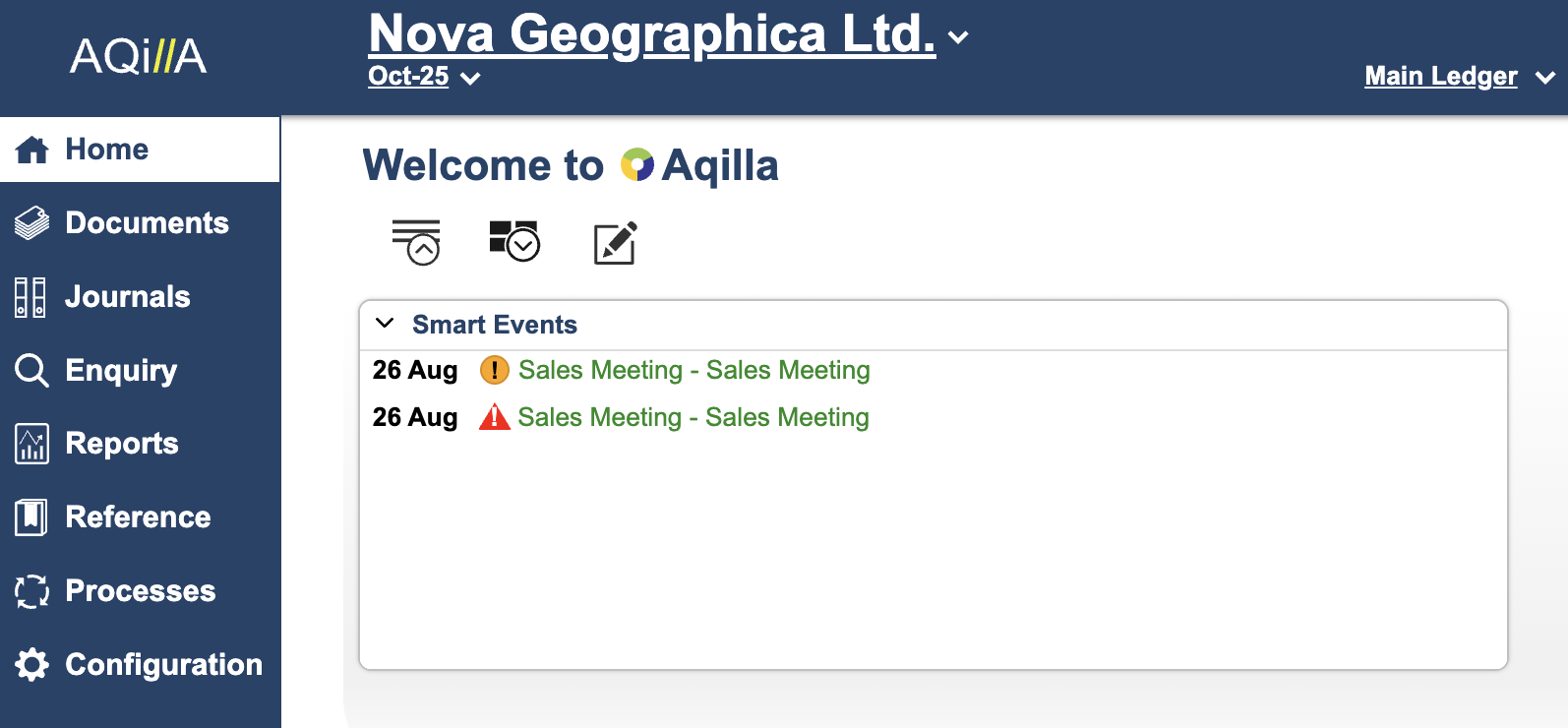
Drilling into the gadget reveals the Smart Event calendar. It displays regular Smart Events under Scheduled and Transaction imports under Ad-Hoc
Templates lists all Notification Templates.
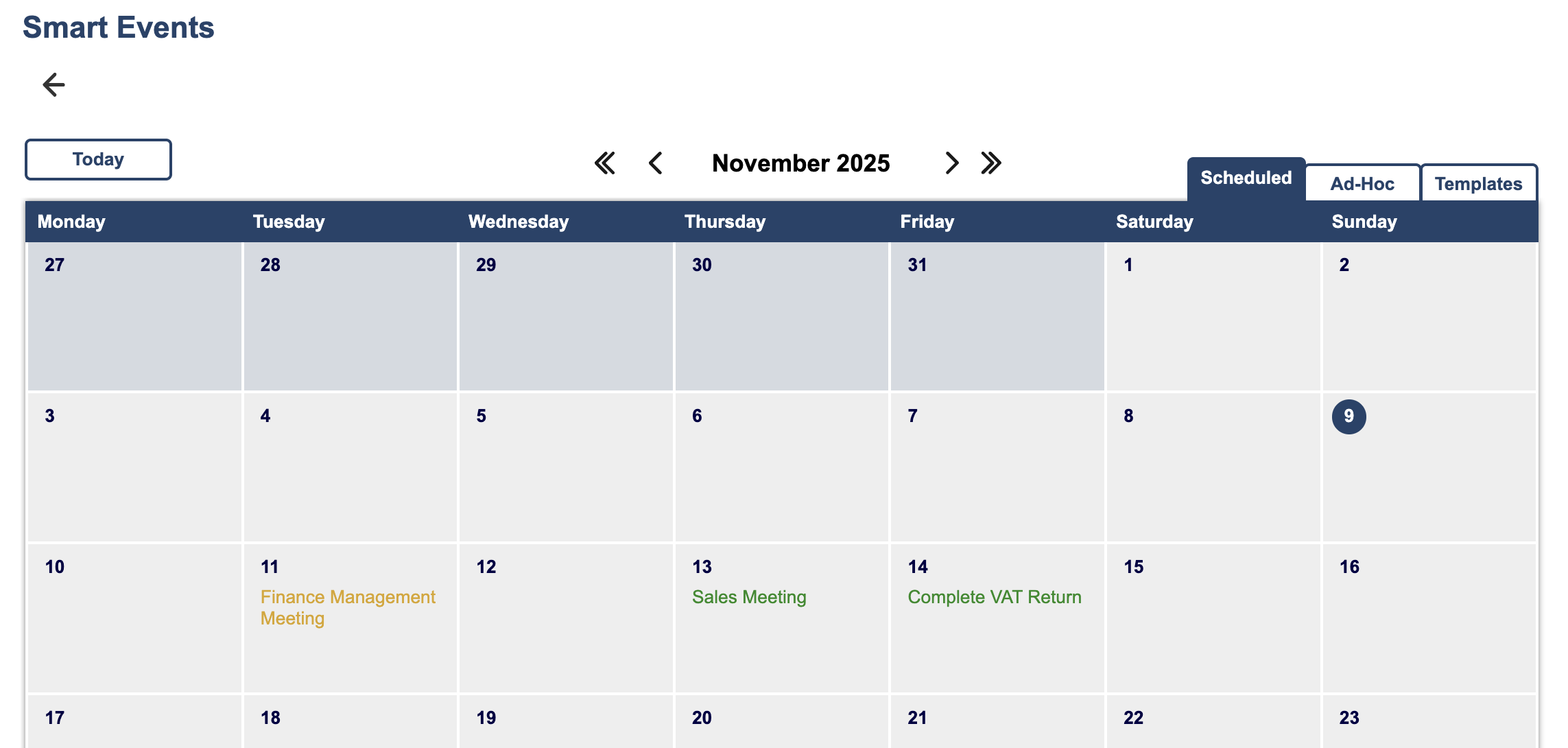
Click on Templates on the Smart Event Page.
You can Create a new Template or access one of the current listed templates.
It is recommended that you access one of the example templates and copy it.
This guide will assume to take a copy of an existing template
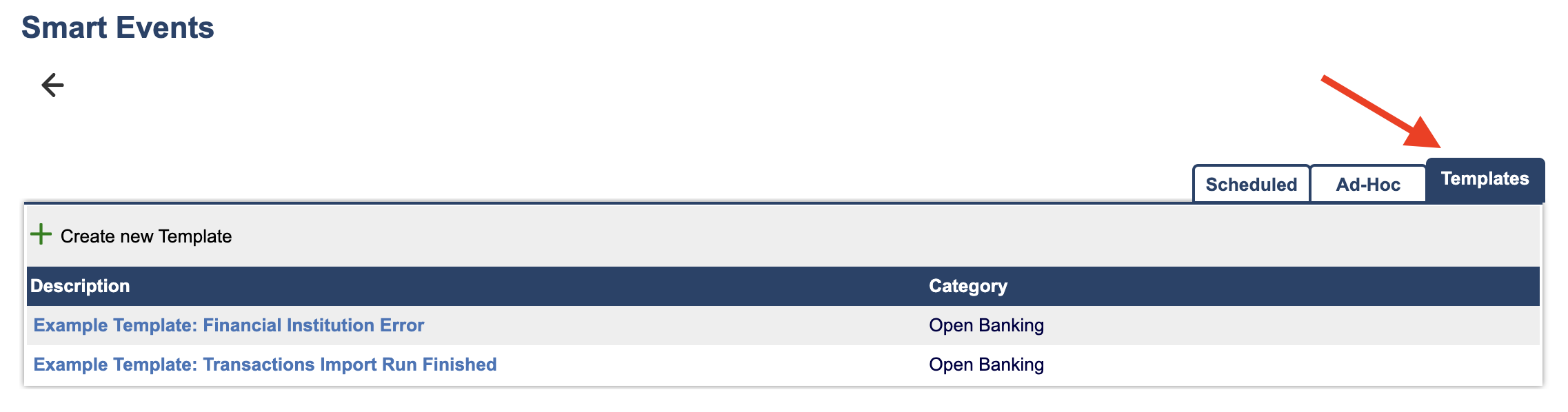
Click on the existing template "Example Template: Financial Institution Error" and then take a Copy of it.
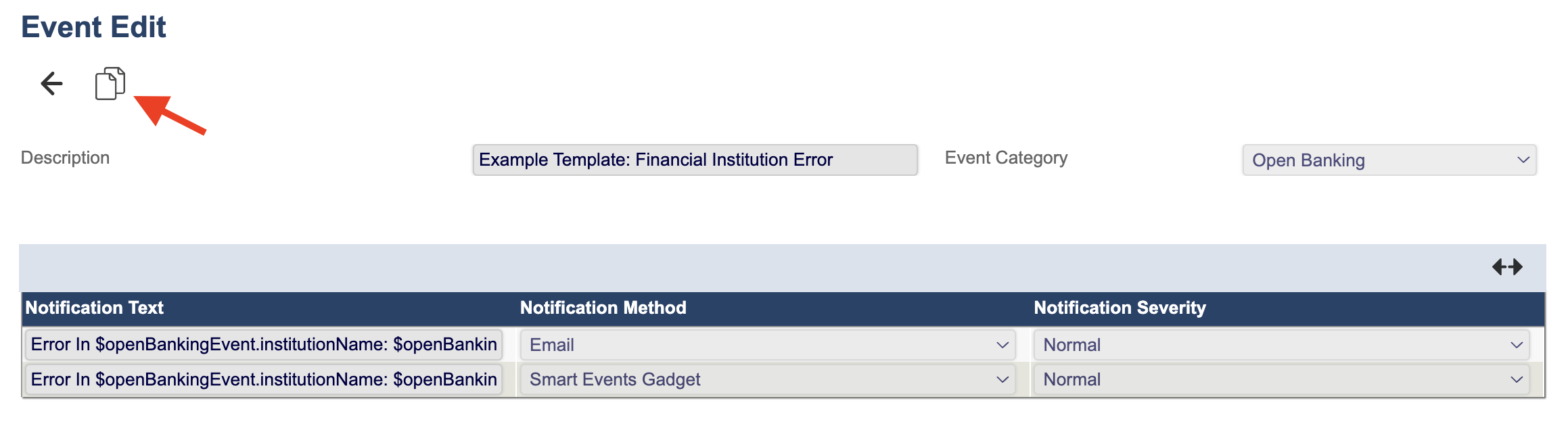
After taking a copy you can simply click on the Apply Changes button to finish the template.
It is highly recommended that you rename the event after the financial institution to show which institute had a successful or failed import (E.g. Financial Institution Error - Natwest Bank Current).
You should only need to change the severity of the notification and add extra recipient to notify.
You do not need to change the Notification text. You can customise it, if you wish, but it is not recommended to make any changes.
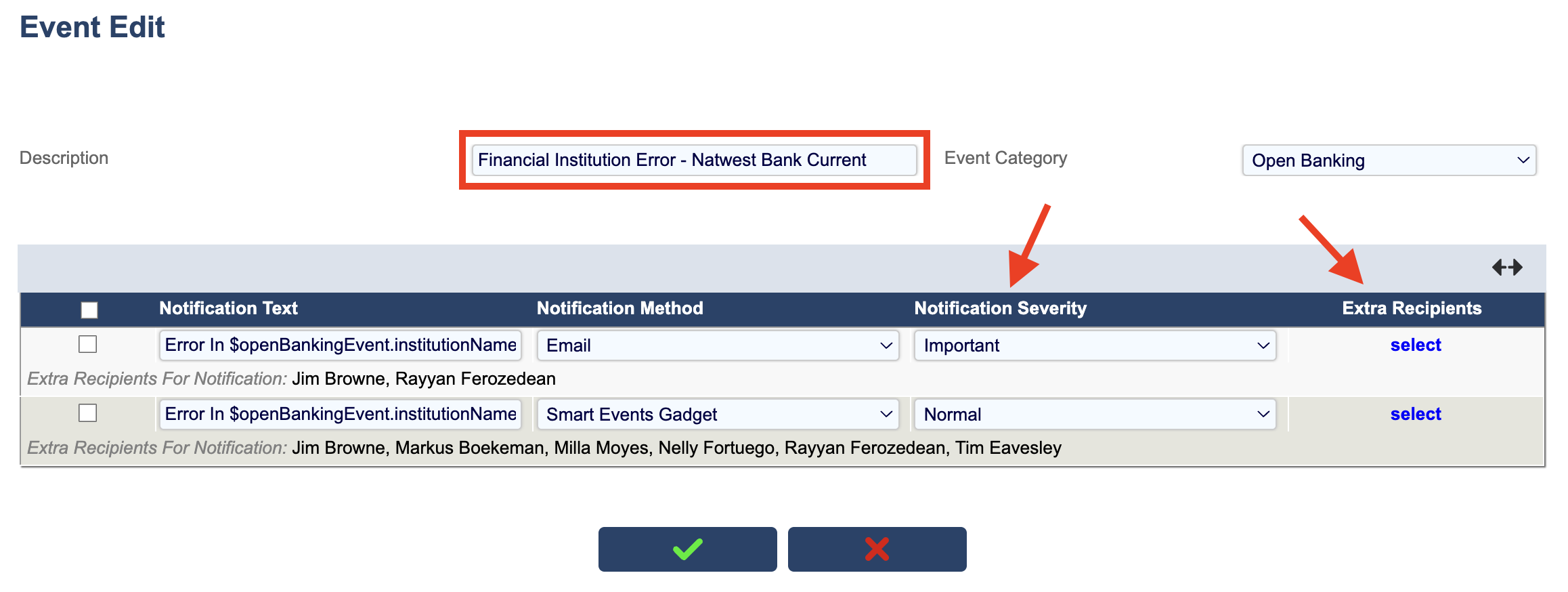
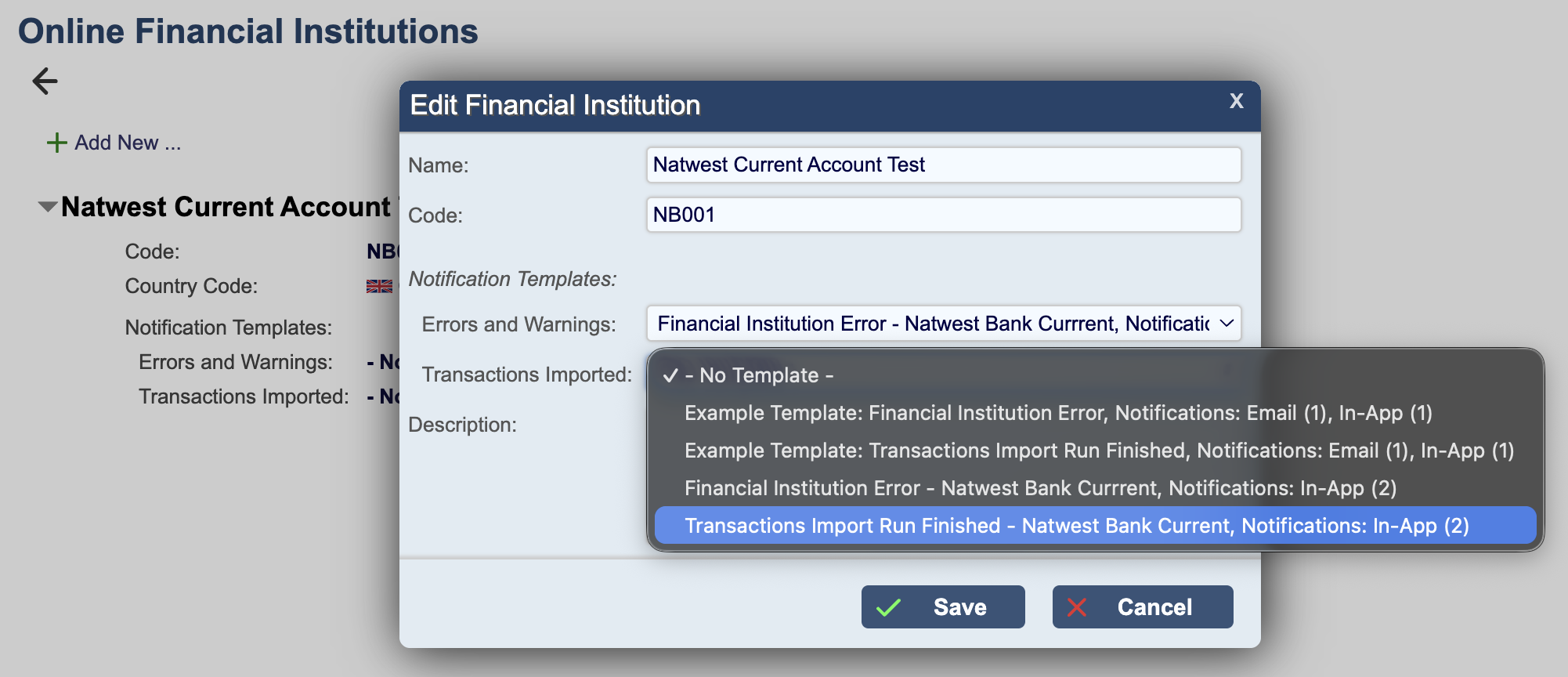
After finishing, you can view your new Notification Templates. They will be available and selectable on your Online Financial Institution Page under the Configuration Tab. Each custom template can be tailored for each bank linked to Aqilla.
You’re all set and will receive daily notifications about the latest imports and errors.